All features
Feature spotlight
Detailed warehouse reports
Review warehouse performance with reporting that helps you understand throughput, exceptions, and execution quality.
How it works
Step 1: Navigate to the Dashboard Inventory Tab
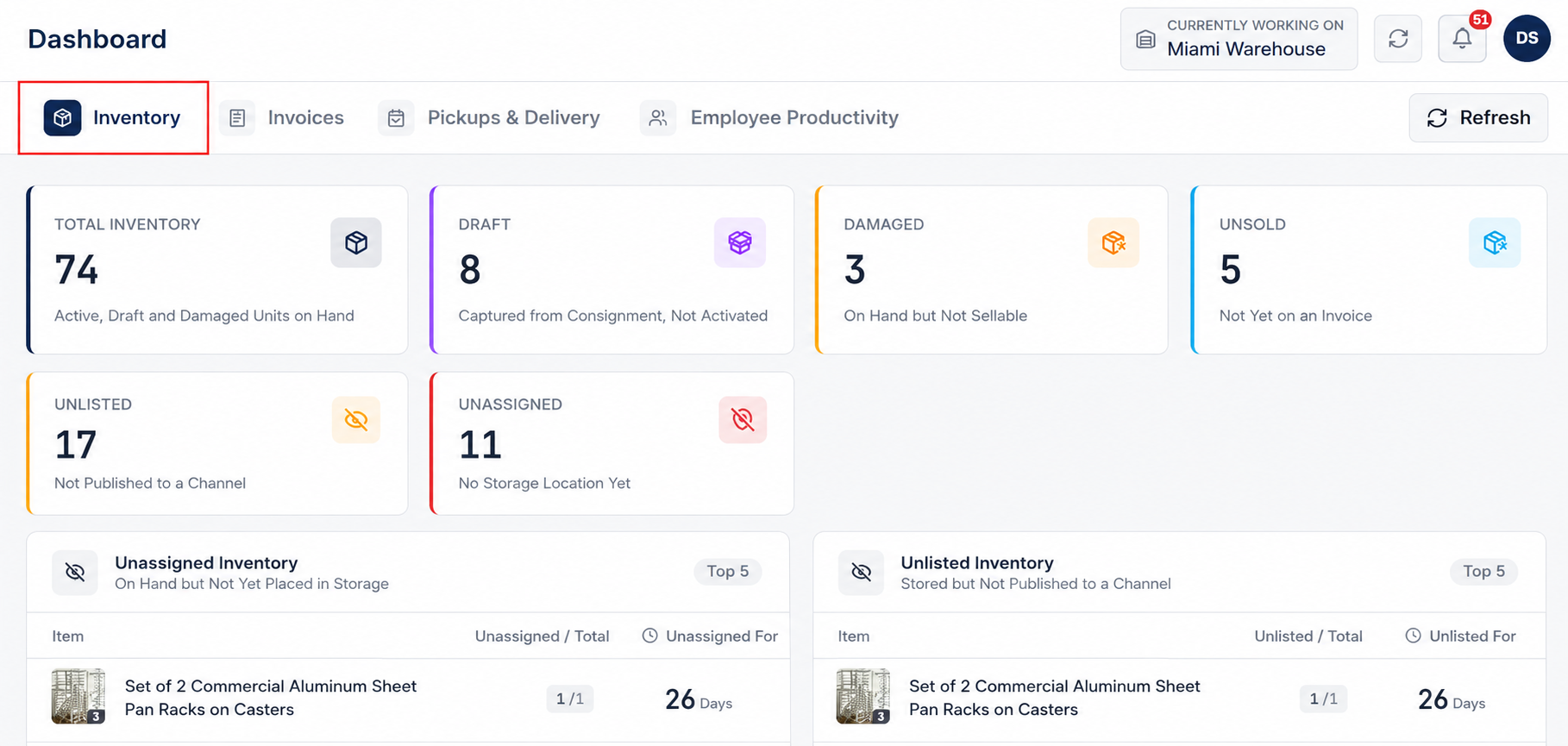
Go to the Dashboard from the Home section in the main navigation menu, then click on the Inventory tab.
This tab displays detailed warehouse reports and real-time inventory metrics across your facility.
Step 2: Overview of Warehouse Inventory Metrics
In the inventory reporting view, monitor high-level inventory counts and status summaries:
- Total Inventory: Total units on hand, categorized by active, draft, and damaged items.
- Draft Items: Items captured from consignment that are not yet active.
- Damaged Items: Damaged inventory items stored on hand that are not sellable.
- Unsold Items: Active items that have not yet been assigned to an invoice.
- Unlisted Items: Items stored in the warehouse but not published to a sales channel.
- Unassigned Items: Inventory items that do not have a designated storage location yet.
Step 3: Review Unassigned & Unlisted Breakdown Reports
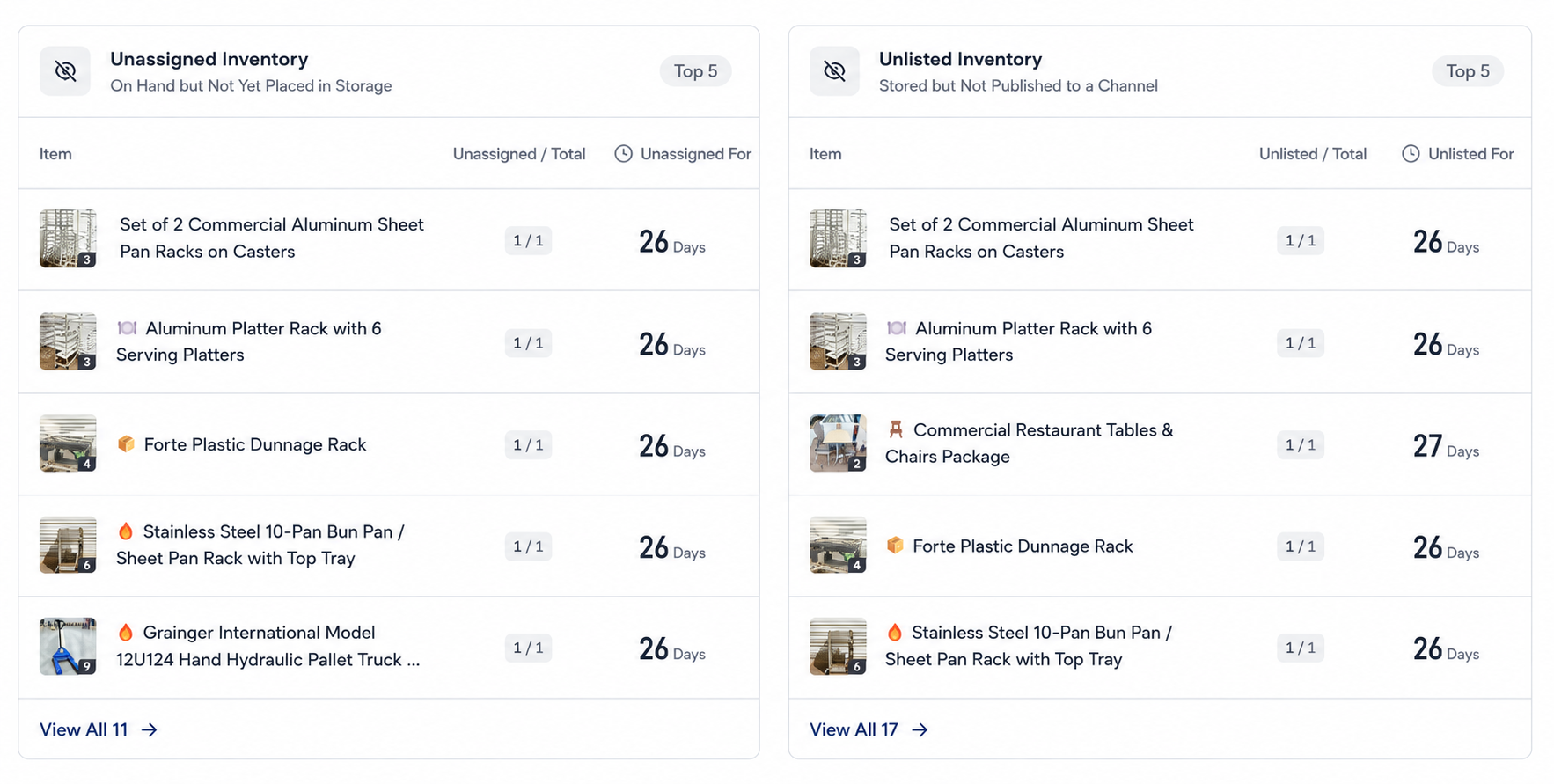
Analyze targeted reports for items requiring operational attention:
- Unassigned Inventory: View items stored on hand but not yet placed in a designated storage location. Track the ratio of unassigned items against total items and monitor the number of days they have remained Unassigned For.
- Unlisted Inventory: View stored items that are not yet published to a sales channel. Track the number of unlisted items against total items and monitor the Unlisted For day count.
Step 4: Click to Inspect Detailed Item Lists
Click on any metric card, count indicator, or status report section to open the corresponding list of items or detailed count breakdowns. This allows warehouse managers to drill down instantly and resolve unassigned or unlisted inventory exceptions.