Feature spotlight
Pickup appointment
Manage and allocate pickup appointments to prevent dock congestion and streamline item retrieval.
Step 1: Access Manage Booking & Select Pickup
Navigate to the Manage Booking page to view all your existing appointments.
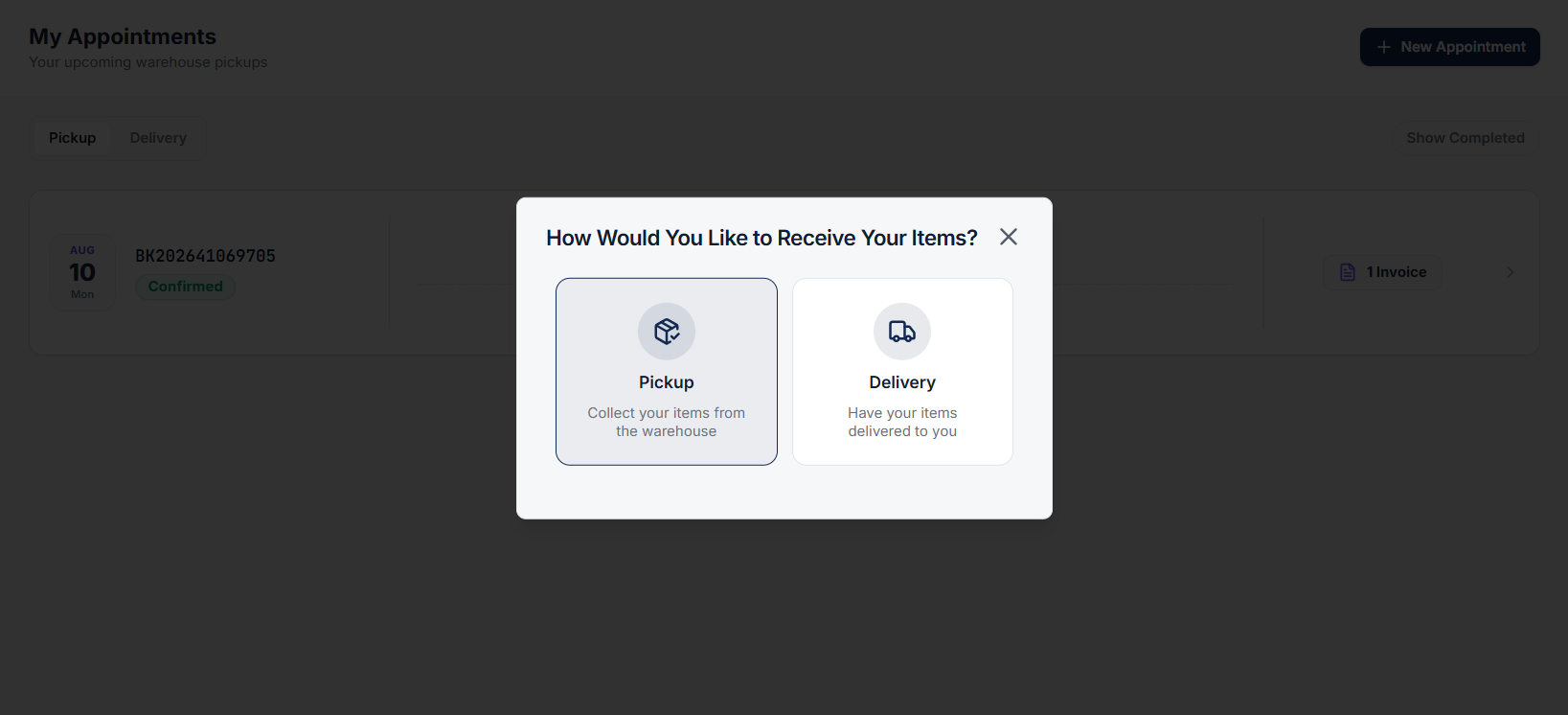
Click on the Add Appointment button to create a new appointment. A popup modal will appear on screen.
Select the Pickup option.
Step 2: Select Invoices for Pickup
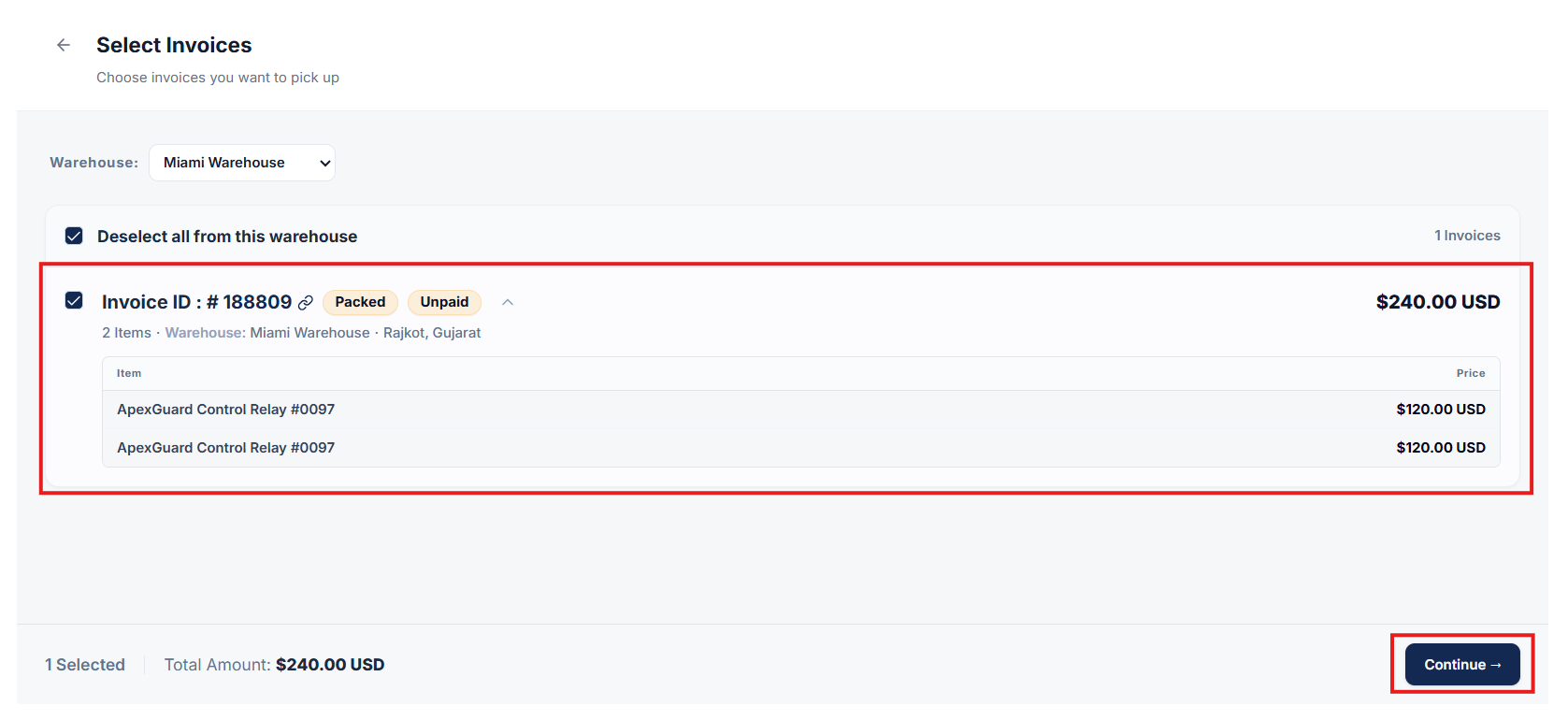
From the list of available invoices, select the specific invoice(s) you wish to pick up.
Click on the Continue button to proceed.
Step 3: Choose Convenient Date & Time Slot
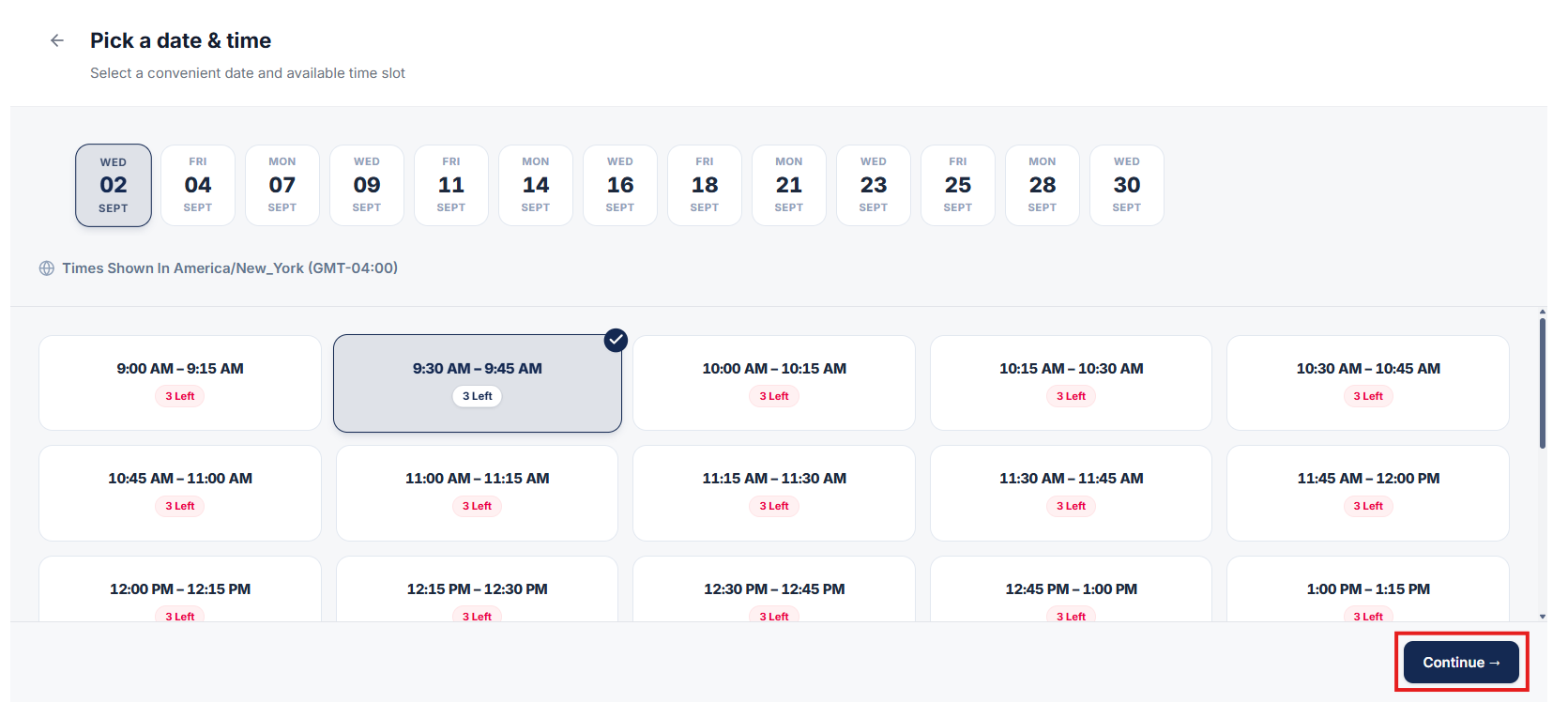
Select your preferred Date and convenient Time Slot for item pickup.
Click on the Continue button to proceed to the final confirmation.
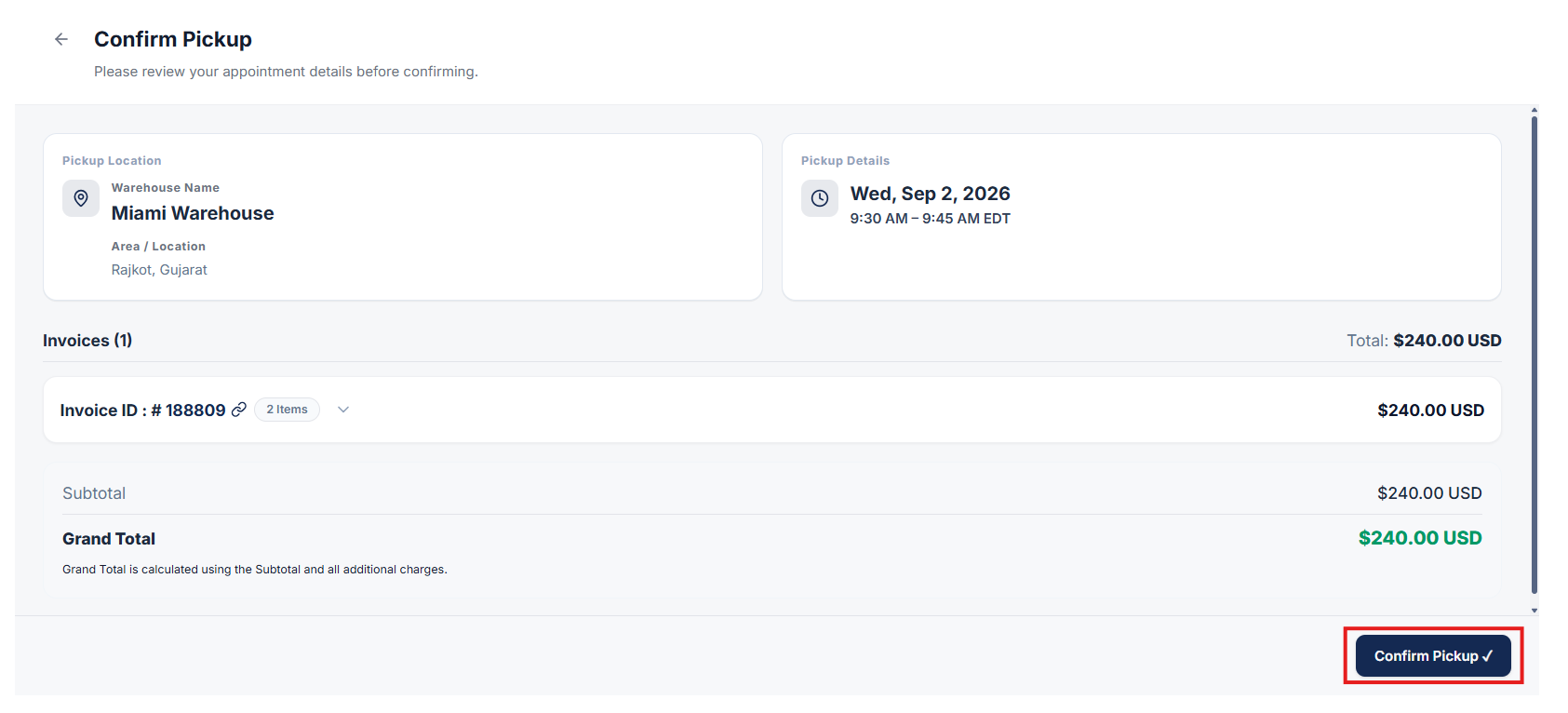
Step 4: Confirm Pickup Appointment
Review your pickup details and click Confirm to schedule your pickup appointment.
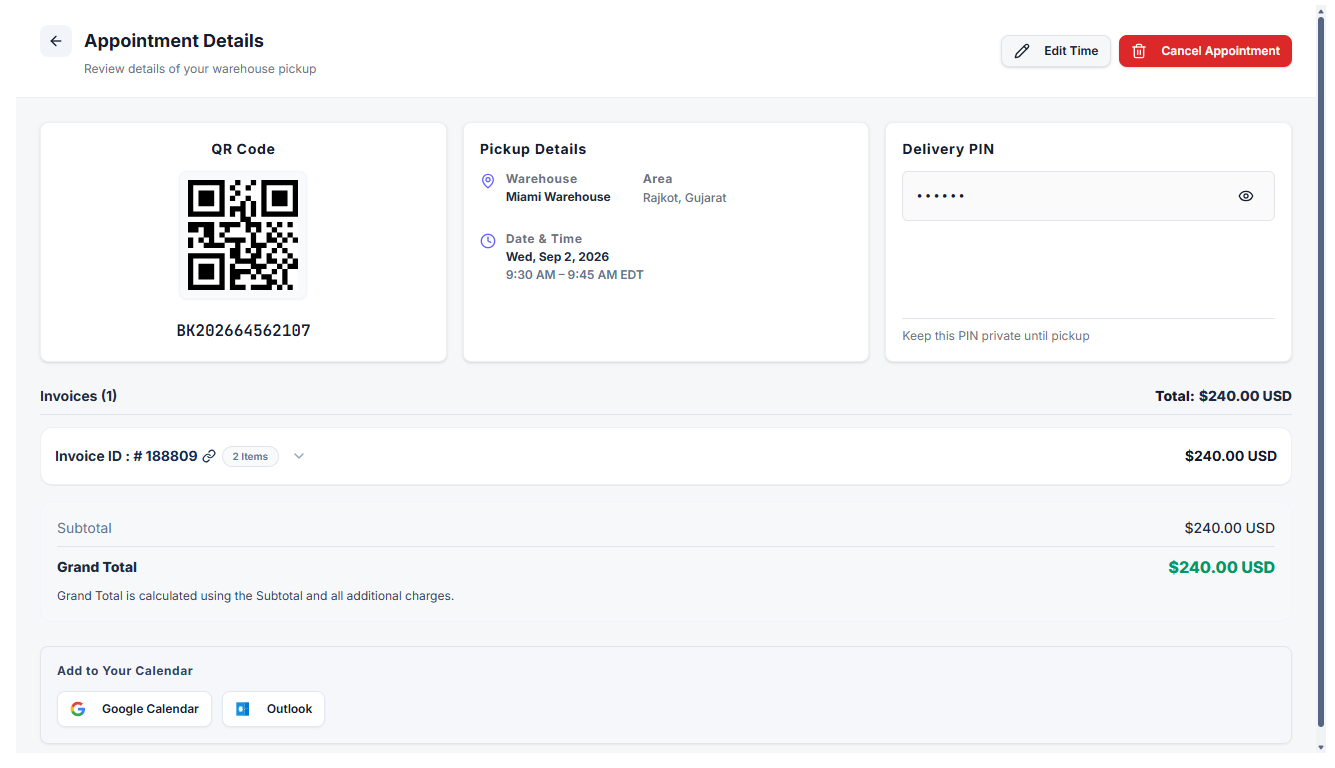
Step 5: View Booked Appointment Details
Once confirmed, you can view the full details of your booked appointment.
After an appointment is created, you can also cancel or reschedule the appointment at any time directly from the appointment details view.