All features
Feature spotlight
Buyer management
Keep buyer information connected to orders and warehouse execution so teams have full context while working.
How it works
Step 1: Automatic Buyer Creation via Invoice Generation
When an invoice is created in WHMSPro, the buyer's details are automatically captured and stored in the system. There is no need for manual entry, as buyer information updates seamlessly as invoices are processed.
Step 2: Navigate to Buyers Page
To view and manage buyer data, go to the Sales section in the main menu and select Buyers.
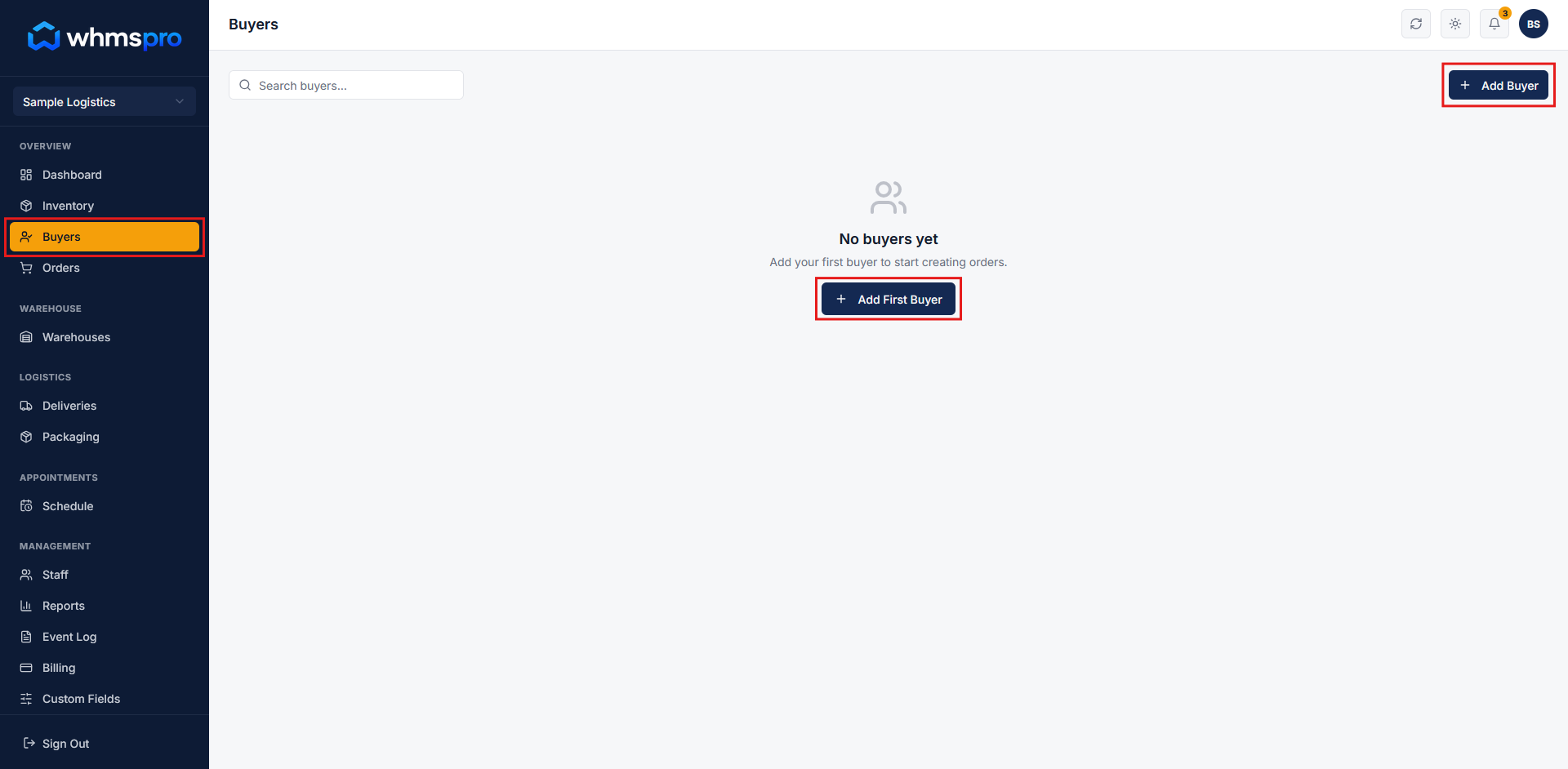
Step 3: View Buyer Directory
On the Buyers page, you can access the complete list of buyers along with key contact details, including:
- Buyer Name: The name of the buyer associated with the invoice.
- Email Address: The buyer's primary email address for communication and record tracking.