Feature spotlight
Custom roles & permissions
Set up role-based access in a few clear steps: create roles, define page-level permissions, assign roles to staff, and manage defaults as your team grows.
Step 1: Go to Staff section under Administration
Navigate to Staff under Administration from the menu.
Here, you can manage your team, roles, and permissions.
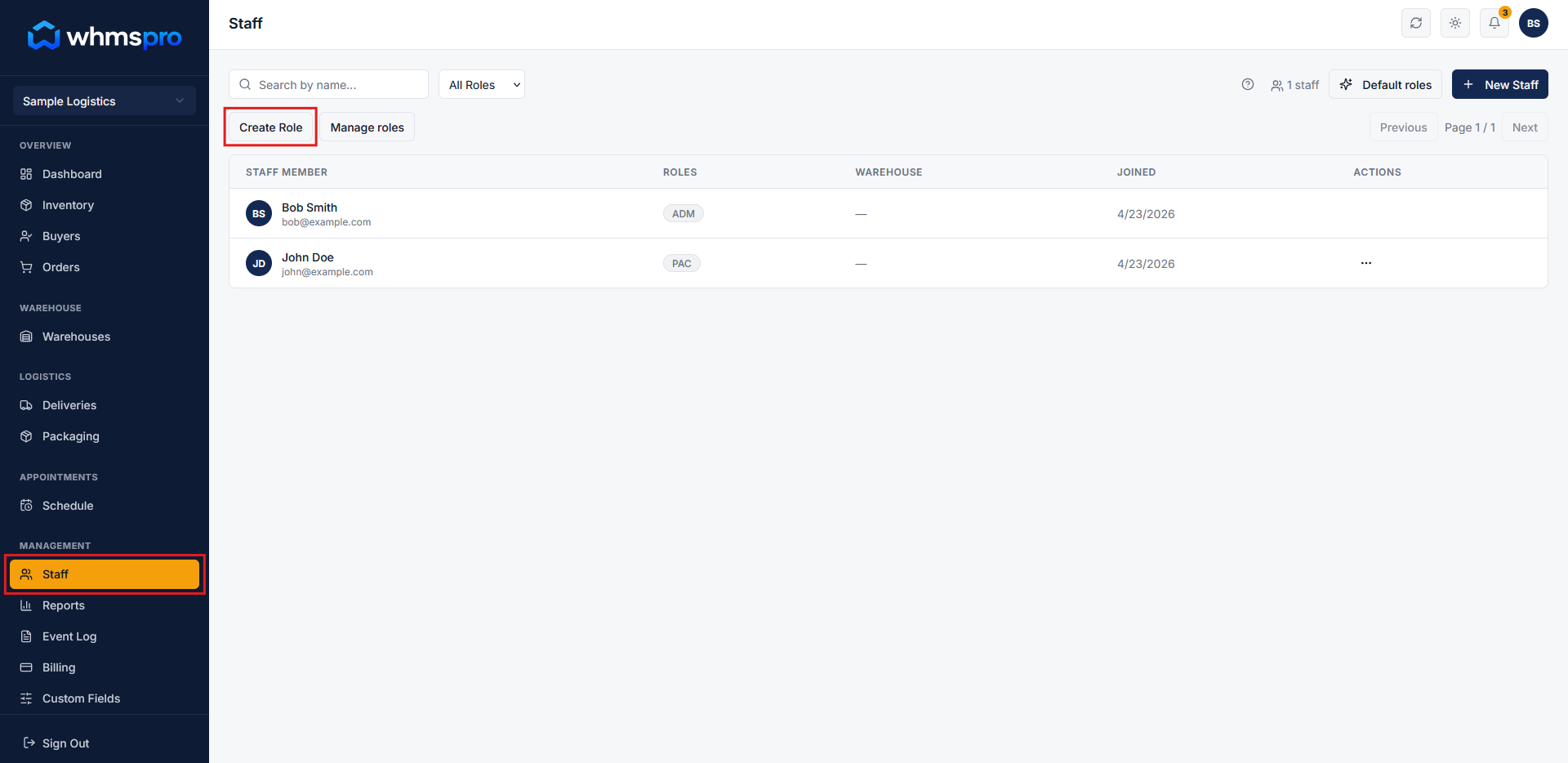
Step 2: Manage Roles and Permissions
Click on the Manage Role button to open the management popup.
In this popup, you can view, add, edit, or delete existing roles and configure their permissions (Add, Edit, Delete, View).
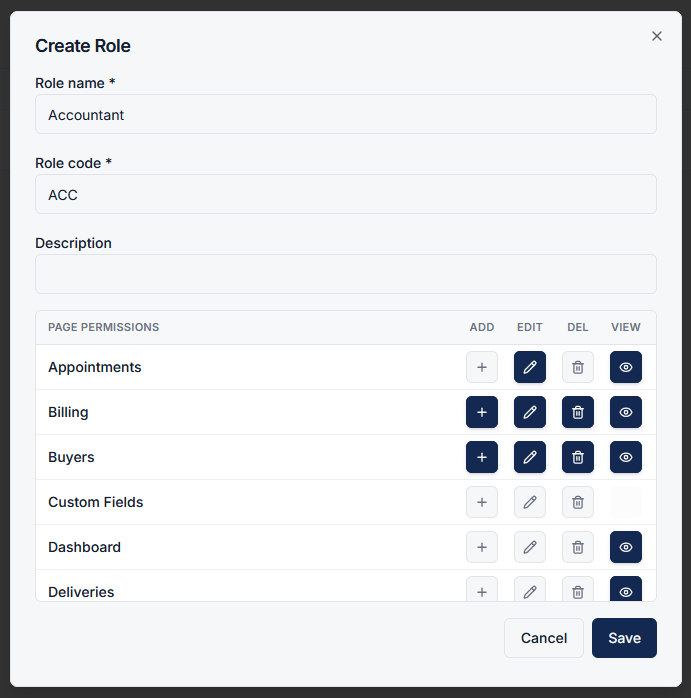
Step 3: Create a New Role
To create a new role, click on the Create Role button inside the Manage Role popup.
Configure the following details:
- Role Name
- Role Code (unique identifier)
- Description
- Page Permissions (Add, Edit, Delete, View)
Click Save to create the new role.
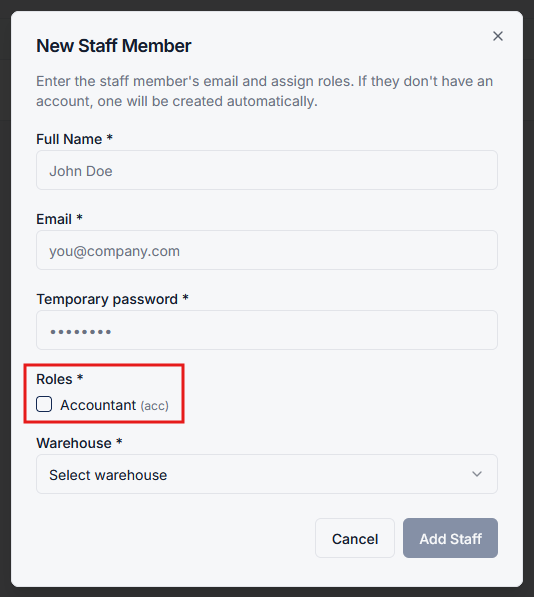
Step 4: Assign Role to Staff
When adding or managing staff members, your newly created role will now be available in the role selection dropdown. Select it to grant the configured access to the staff member.
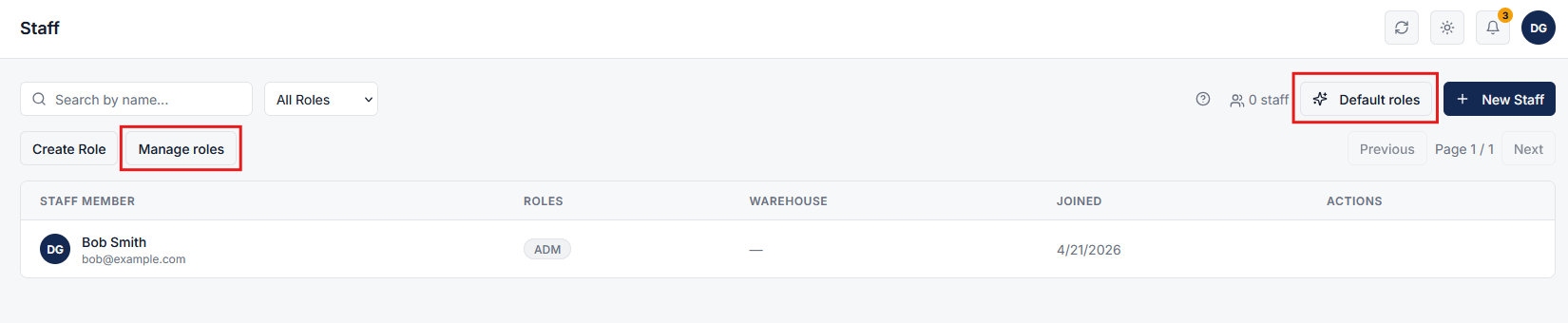
Step 5: Control access efficiently
Custom roles and permissions allow you to define exactly who can access and perform actions within the system.
This ensures better security, accountability, and streamlined operations across your team.