Feature spotlight
Delivery
Equip drivers with real-time delivery job assignment notifications, organized Today and Upcoming job views, warehouse packed item location lookup, Out for Delivery status controls, and proof of delivery verification including Delivery PIN, Consigner Signature, and ID Proof upload.
Step 1: Receive Job Assignment Notification & Access My Jobs
When a delivery job is assigned to a driver, they receive an immediate notification on their mobile device.
Click on the notification or navigate directly to the My Jobs page.
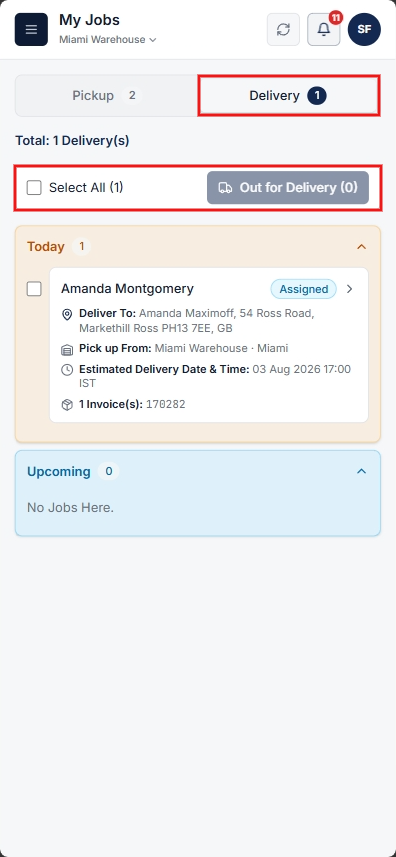
In the My Jobs section, select the Delivery tab. Assigned delivery jobs are divided into two categories:
- Today: Delivery jobs scheduled for the current day.
- Upcoming: Delivery jobs scheduled for future dates.
Step 2: Select Multiple Jobs & Start Delivery
Drivers can select multiple delivery jobs using the selection checkboxes next to each job.
Once the required delivery jobs are selected, click Start Delivery Job to begin the route and update job statuses.
Step 3: View Packed Item Locations & Delivery Details
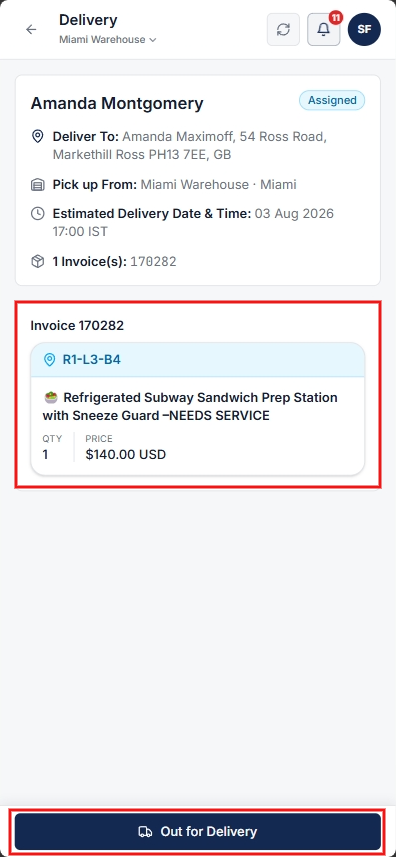
Click on any delivery job to view comprehensive order and item details.
Drivers can view the exact physical warehouse storage location path of all packed items ready for pickup and delivery.
Step 4: Mark as Out for Delivery
Once packed items are loaded onto the vehicle, click the Out for Delivery button on the job details screen to update the live tracking status.
Step 5: Delivery Verification & Confirmation
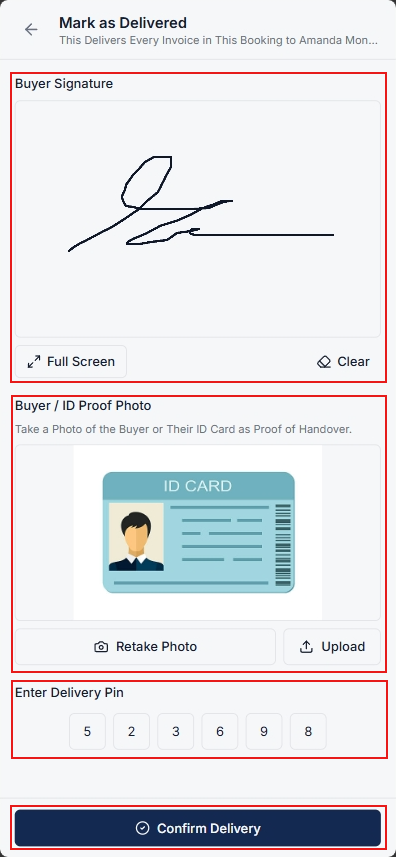
Click on Mark as Delivered button.
If asked for Signature, ID Proof, or Delivery PIN, enter the verification details:
- Collect Consigner's Signature: Capture the recipient's signature directly on the mobile app screen.
- Upload ID Proof: Capture or upload the Consigner's ID Proof document.
- Enter Delivery PIN: Input the unique Delivery PIN provided in the buyer's Booking Confirmation Email.
After entering the required verification details, click Confirm Delivery to complete the job.