All features
Feature spotlight
Customer pickup
Facilitate efficient customer order pickup procedures at the warehouse with real-time status updates.
How it works
Step 1: View Pickup Appointments in WHMSPro
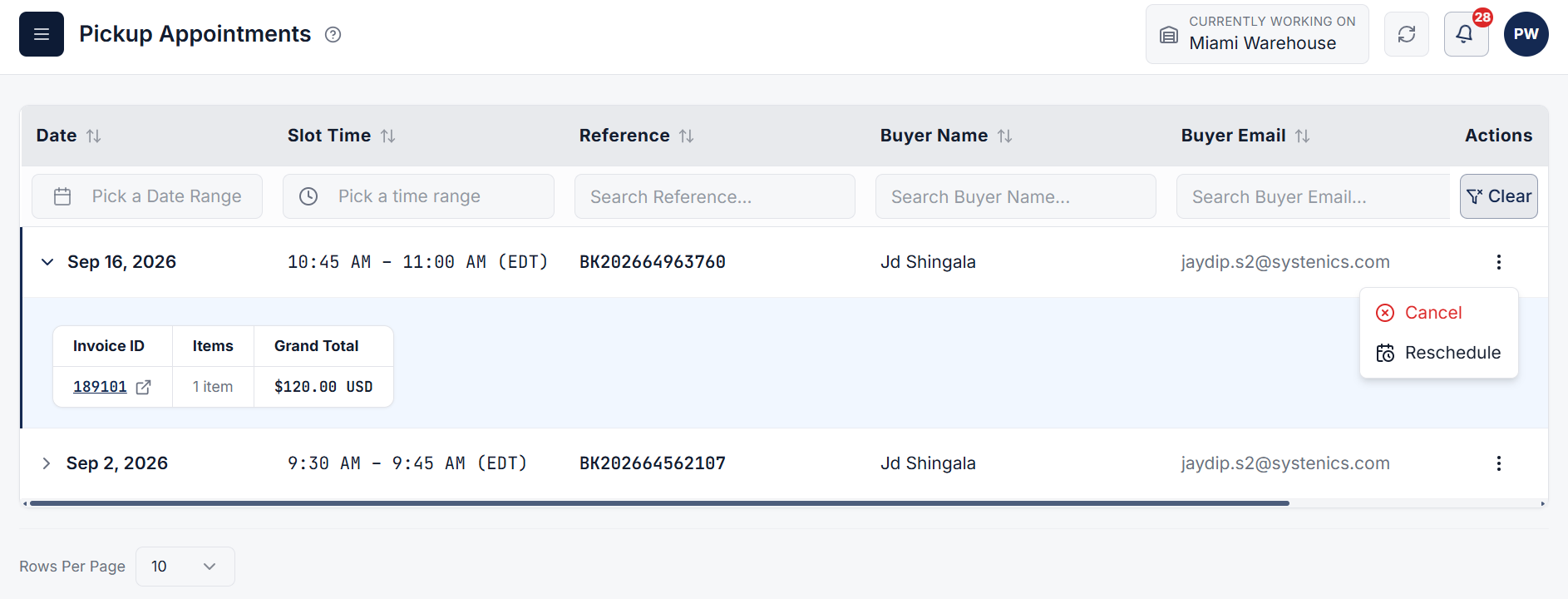
From the WHMSPro administration side, warehouse managers and operators can view all scheduled customer pickup appointments.
Navigate to the Warehouse section and click on the Pickup Appointments page to monitor and manage all pickup appointments, including options to cancel or reschedule existing appointments.
Step 2: Scan QR Code & Verify Products
When the buyer arrives at the warehouse for item pickup:
- Open the Pickup Appointments page under the Warehouse section.
- Click on the Scan QR button to launch the scanner.
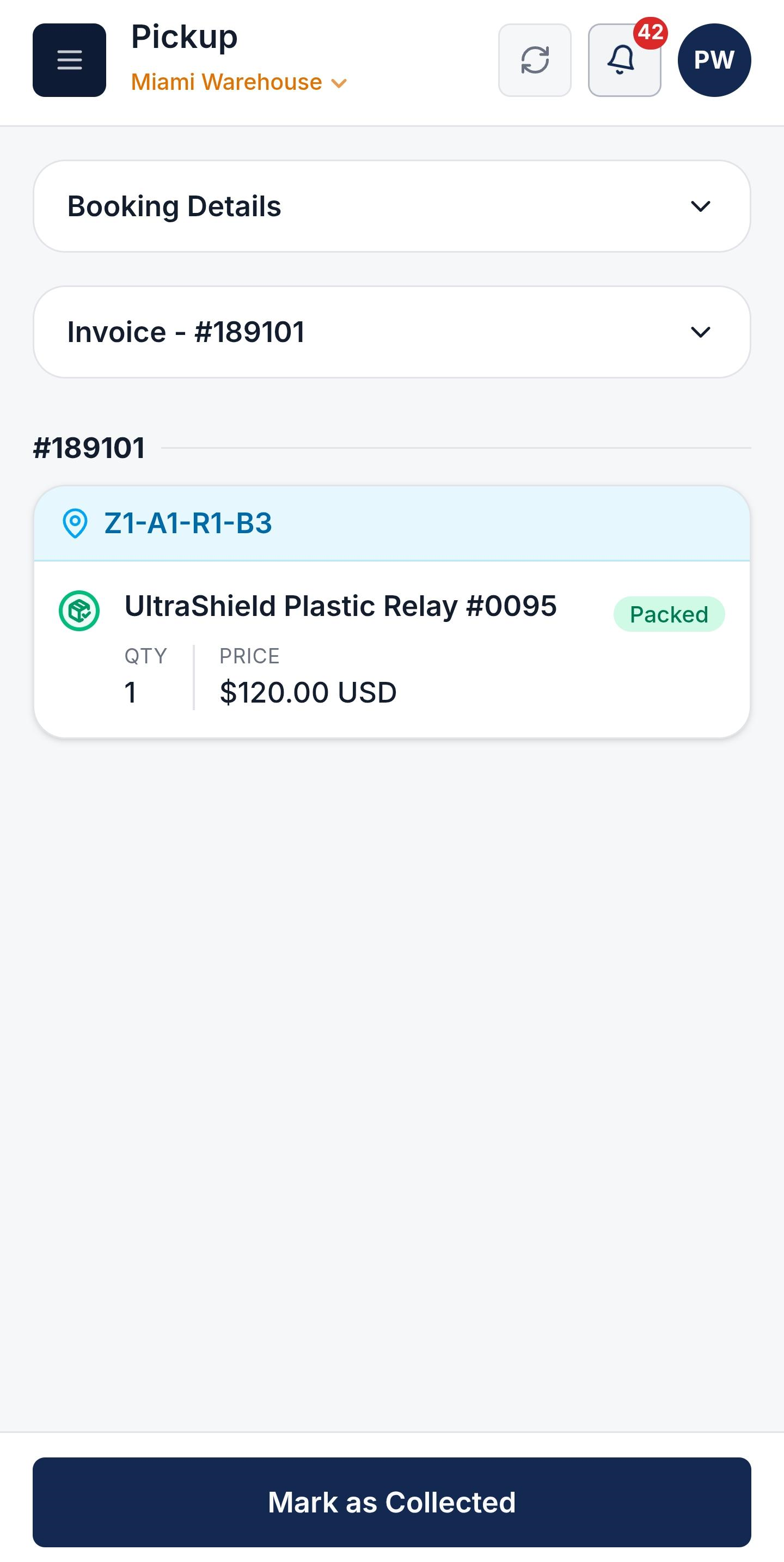
- Scan the QR Code located directly on the buyer's invoice.
- Verify the scanned product details, then click on the Mark as Delivered button.
Step 3: Complete Verification & Finalize Pickup
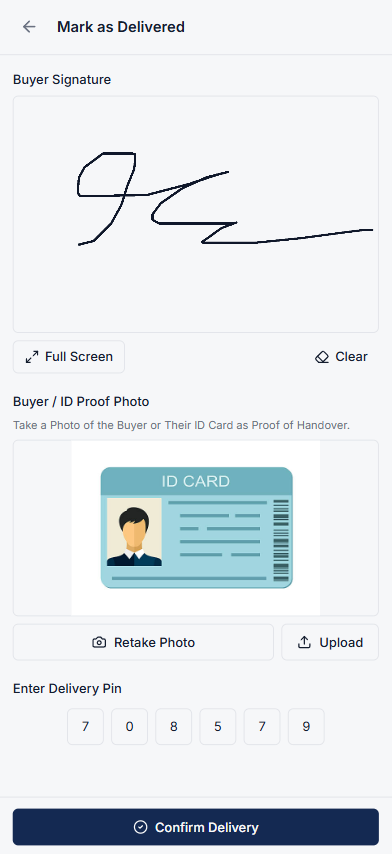
If required by system settings, enter or collect the requested verification details:
- Buyer's Signature: Capture the buyer's signature directly on screen.
- Buyer / ID Proof Photo: Capture or upload the Buyer / ID Proof document.
- Delivery PIN: Input the unique Delivery PIN provided in the buyer's pickup confirmation.
After entering the required verification details, click on the Confirm Delivery button to complete the pickup process.