Feature spotlight
Consigner pickup
Streamline consigner pickup schedules, verification of items, and intake workflows.
Step 1: View Scheduled Pickup Jobs
When a new consignment pickup job is assigned to the driver, they will receive a notification on their mobile device.
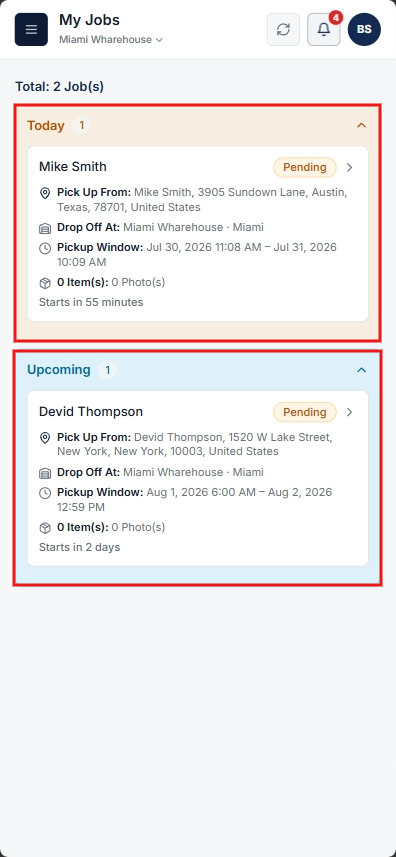
Click on the notification or navigate to the My Jobs page.
The My Jobs section is divided into three areas:
- Today: Pickup jobs scheduled for the current day.
- Upcoming: Pickup jobs scheduled for future dates.
- Overdue: Pending jobs whose scheduled time has passed.
Step 2: Open Pickup Details & Start Pickup
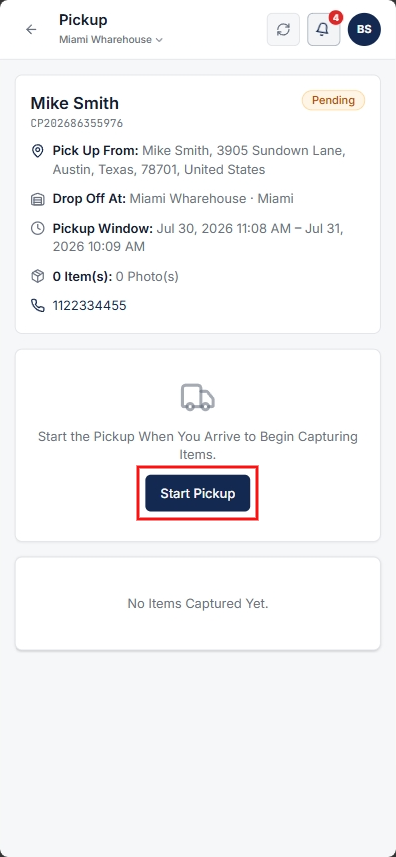
Select the required consignment pickup job to open the Pickup Details page.
Review the job details, then click Start Pickup to begin the process.
Step 3: Capture Item Photos & Additional Information
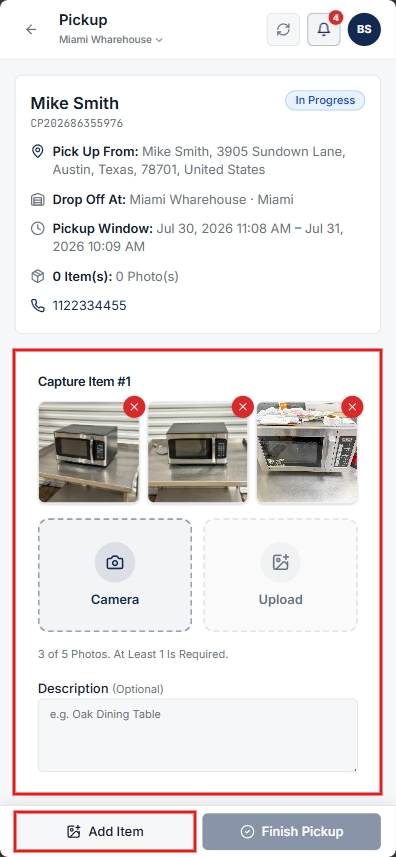
Scroll down to the Capture Items section to record item details:
- Upload Photos: Capture or upload photos of the items being picked up (up to 5 photos per pickup).
- Add Descriptions: Enter any additional relevant information or notes in the Description field.
Once item photos and notes are recorded, tap Add Item to save the item details. Drivers can add multiple items for the pickup as needed.
Step 4: Collect Consigner Verification
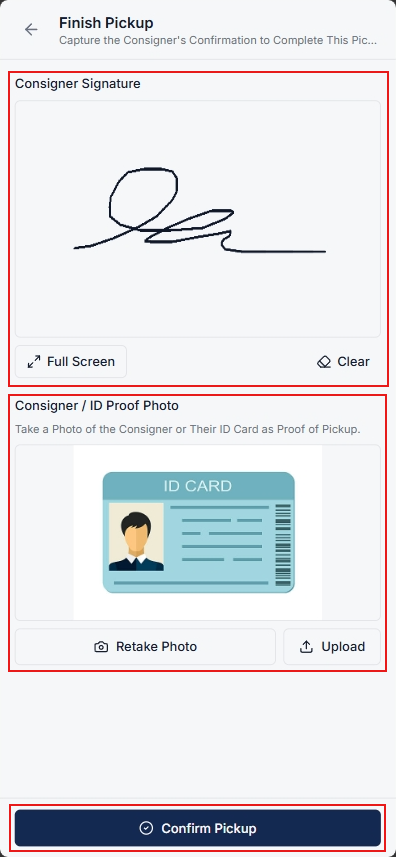
After all consignment items are collected, tap Finish Pickup.
If asked for Signature or ID Proof:
- Collect the Consigner's Signature directly on the mobile app.
- Capture or upload the Consigner's ID Proof.
Once verification details are complete, tap Confirm Pickup to submit and finalize the consignment pickup.
Step 5: Mark Delivery & Automated Inventory Update
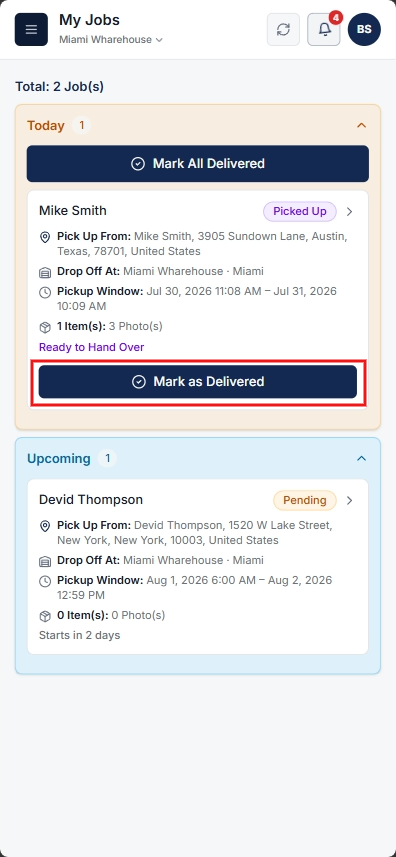
After completing the pickup and returning to the facility, locate the job record and tap Mark as Delivered to complete the final delivery workflow at the warehouse.
Once the job is completed, the picked items from the consigner will be automatically added to the inventory.