Feature spotlight
Consigner management
Maintain comprehensive consigner details, track consignment inventory, and manage terms efficiently.
Step 1: Understand Consigners
Consigners are external partners, vendors, or individual sellers from whom goods and inventory items are collected for storage, fulfillment, or auction listing.
Managing consigner profiles allows your logistics and warehouse teams to maintain clear records of item origins, pickup addresses, and seller contacts.
If your organization is connected with AuctionWorx, consigners are automatically updated across both platforms:
- When a new consigner is created in AuctionWorx, it automatically appears in WHMSPro.
- Likewise, when a new consigner is created in WHMSPro, it automatically appears in AuctionWorx.
Step 2: Navigate to Consignment Section & Click New Consigner
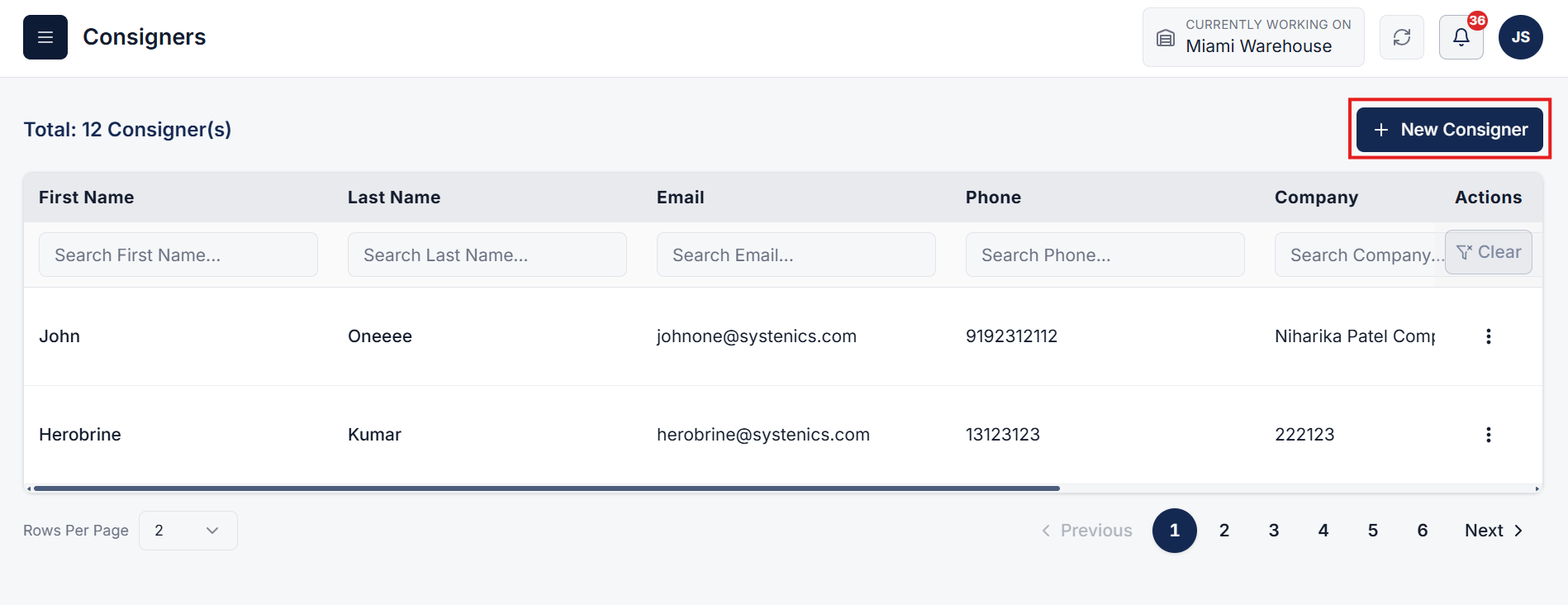
From the main menu, go to Consigners under the Logistics & Transport section.
This page serves as a centralized hub to manage, view, edit, and organize all your registered consigners.
Click on the New Consigner button at the top of the page to open the consigner creation form.
Step 3: Add Consigner Details & Create Profile
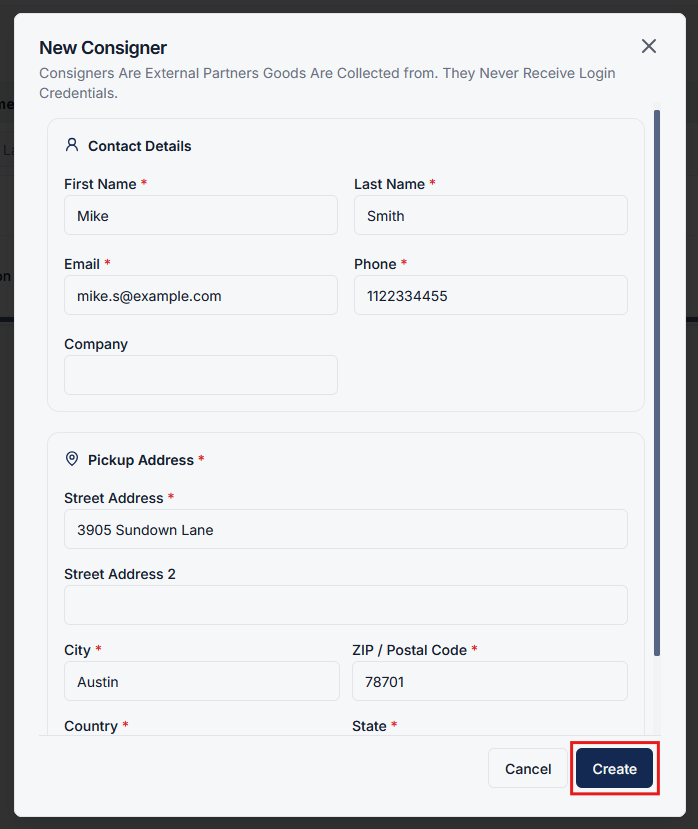
Fill in all required consigner information in the form:
- Contact Details: Name, email, phone number, and primary contact details.
- Pickup Address: Primary address and location details for consignment pickup operations.
After filling out the required fields, click the Create button to complete registration. The new consigner profile will now be active in your system (and automatically added to AuctionWorx if connected).
Note that consigners represent external partners for tracking inventory origin; they never receive direct system login credentials.
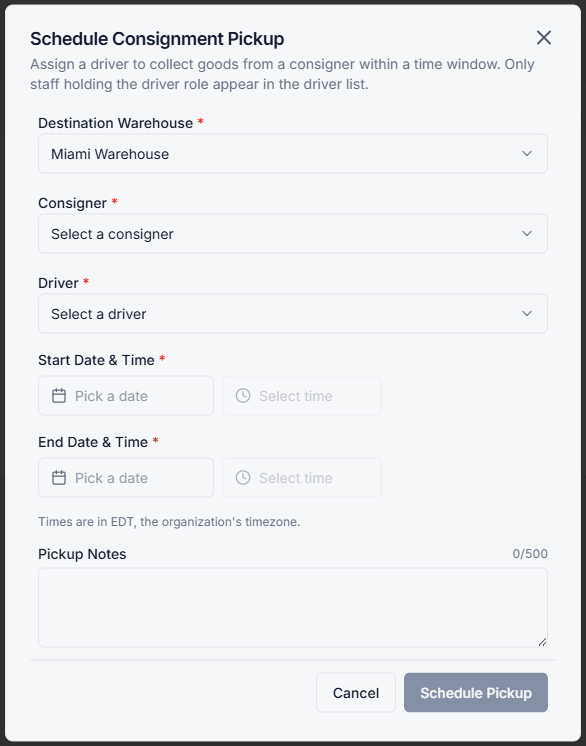
Step 4: Book Consignment Pickup with New Consigner
When booking a new consignment pickup, the newly created (or updated) consigner will automatically appear in the Consigner selection field.
Select the consigner to associate their profile and pickup address directly with the pickup job.