Feature spotlight
Manage appointments
Create custom appointment templates, configure flexible daily, weekly, or monthly recurring slots, set buyer booking limits, and manage operational schedules.
Step 1: Navigate to Manage Appointments
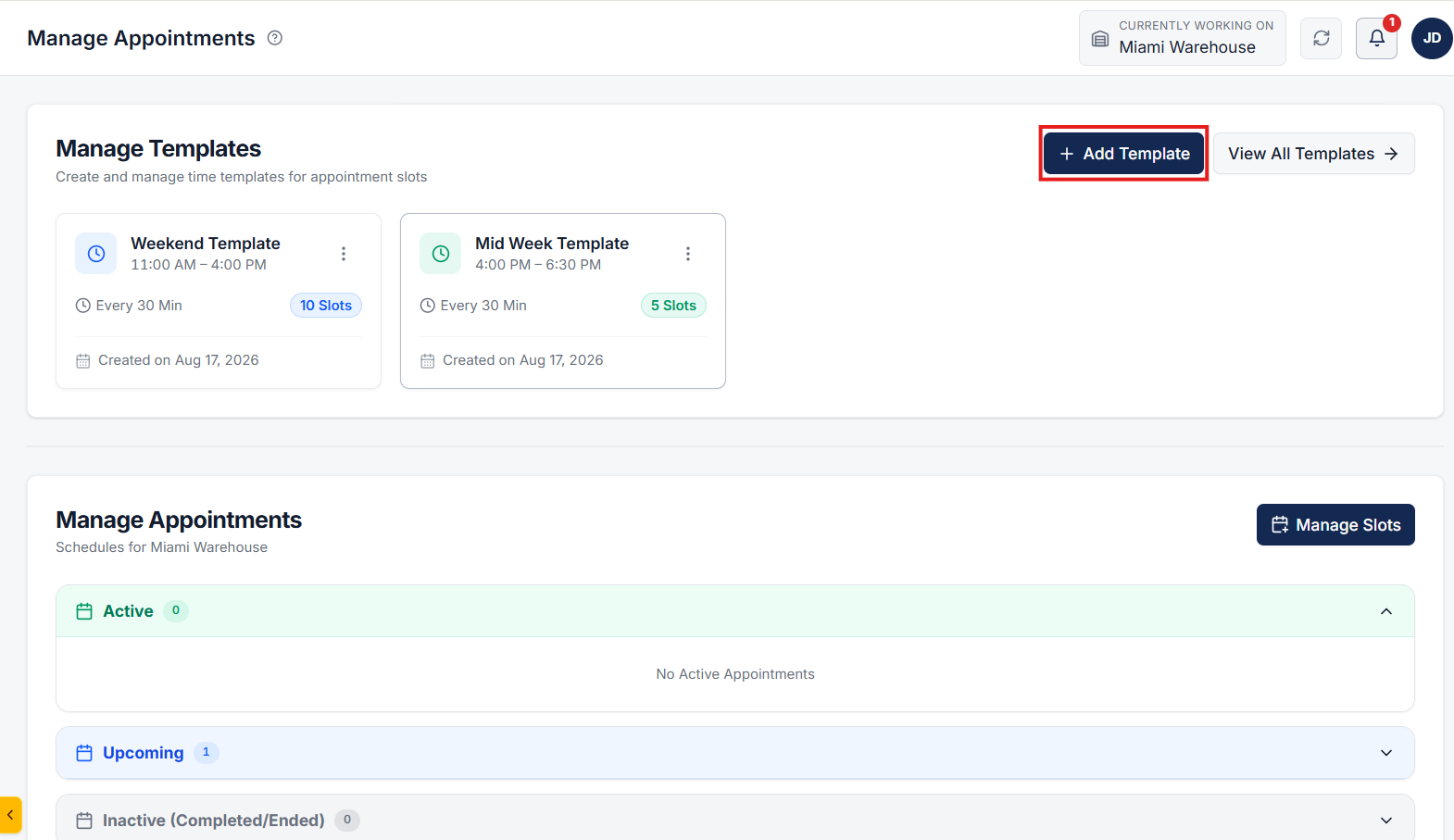
Go to the Manage Appointments page located under the Administration section from the main navigation menu.
Here on this page, you can manage all your appointments for both pickup and delivery.
Step 2: Create an Appointment Template
Click on the Add Template button. A popup modal will appear on the screen.
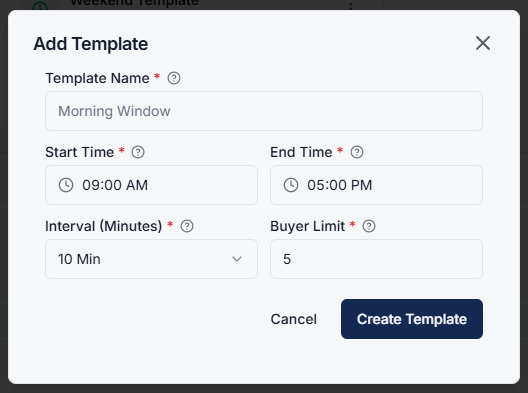
Fill in the template details:
- Template Name: Enter a descriptive name for the appointment template.
- Start Time: Set the start time for the appointment slot range (operating hours).
- End Time: Set the end time for the appointment slot range.
- Interval: Define the duration of each individual appointment slot within the time range.
- Buyer Limit: Set the maximum number of buyers allowed to book each slot.
After entering all details, click on the Create Template button to save the new template.
Step 3: Configure Appointment Slots & Recurrence
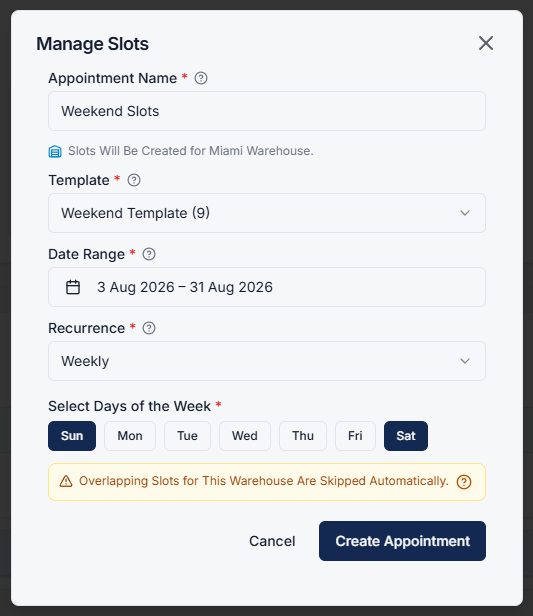
Click on the Manage Slot button. A popup modal will appear on the screen.
Configure the appointment slot schedule:
- Appointment Name: Enter a name for the appointment schedule.
- Select Template: Choose the appointment template created in Step 2.
- Pick Date Range: Select the start and end dates for the schedule duration.
- Select Recurrence: Choose how often the appointment slot pattern should repeat:
- Daily: Slots will be created for each day of the selected date range.
- Weekly: Select specific days of the week on which you want to create appointment slots.
- Monthly: Choose between two options:
- First Day of the Month / Date Match: Slots recur on the starting day number of each month (for example, if date range is August 3 to September 30, slots trigger on Day 3 of each month).
- Selected Day of the Month: Select a specific recurring day pattern (for example, the 1st Monday of each month).
Step 4: Finalize Appointment Slot Creation
Click on the Create Appointment button.
Your pickup appointment slots are now generated, allowing buyers to select and book their preferred convenient time slot.
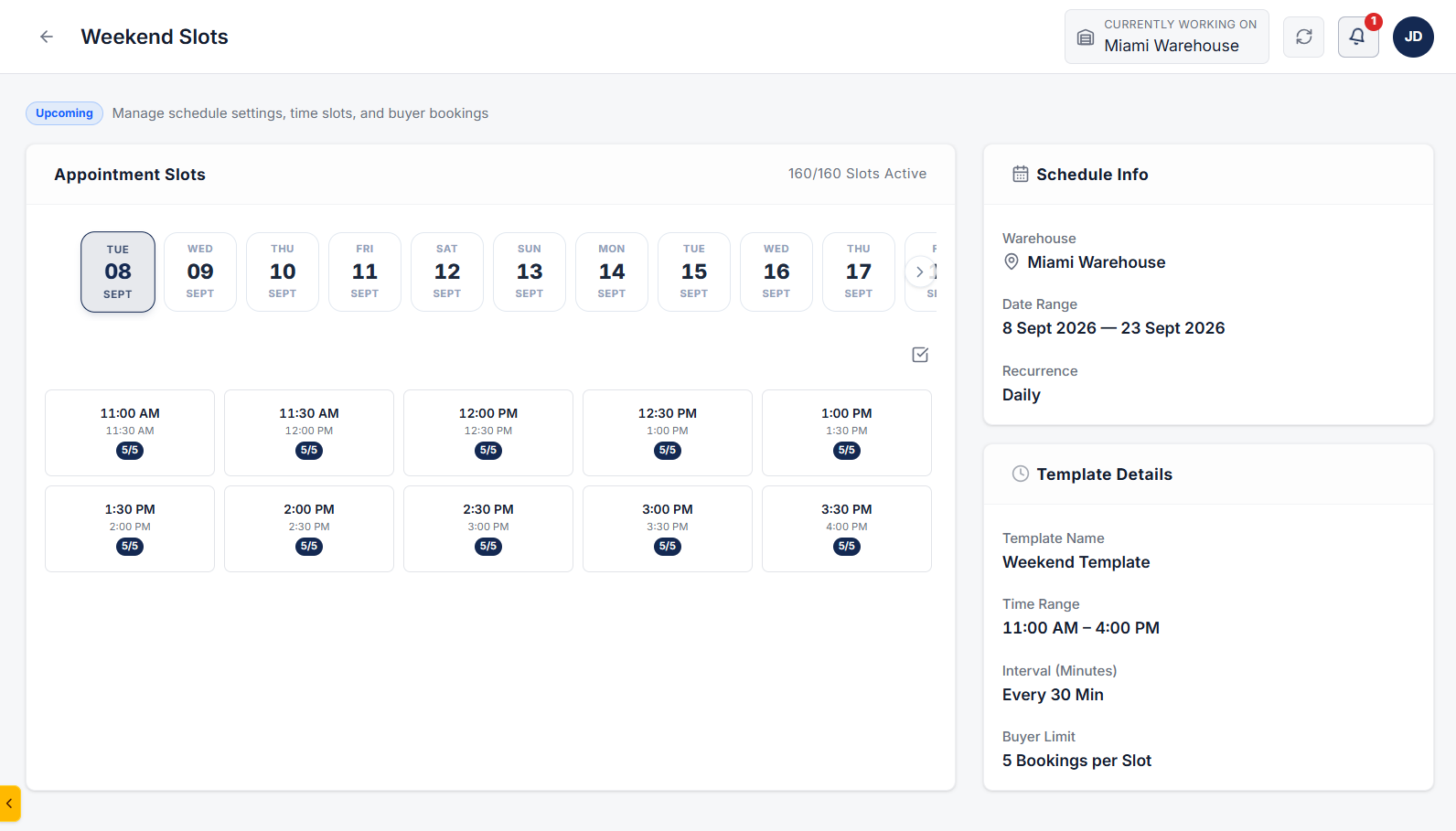
click on 3 dots and select View slot details button to view and manage slot of appointment.