Feature spotlight
Bulk storage creation
Create large sets of storage locations quickly so new warehouses and expansions can go live faster.
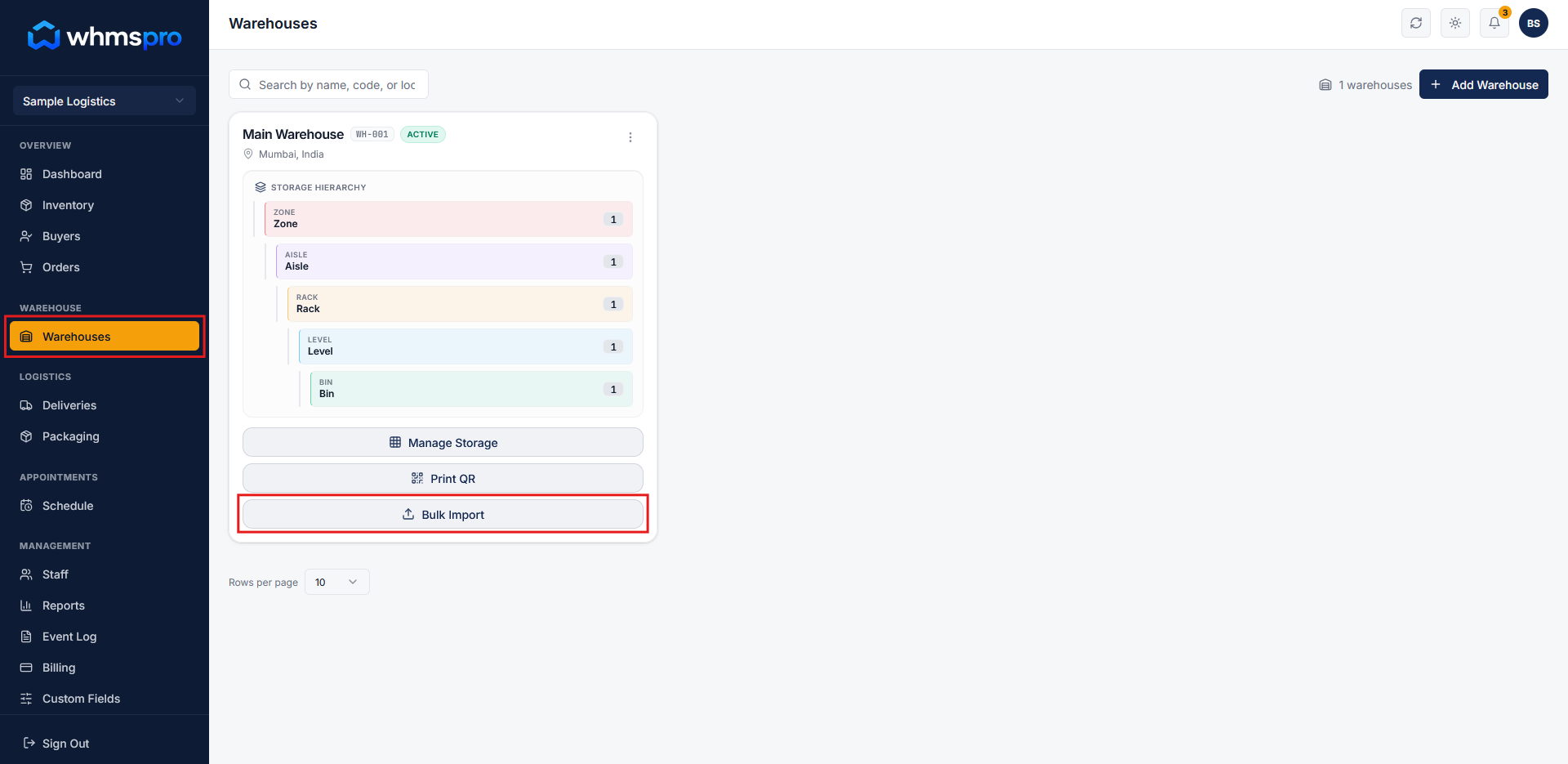
Step 1: Go to Storage under Warehouse
Navigate to Storage under Warehouse from the menu.
Click on the Upload Storage button to open the upload page.
Step 2: Download and update template
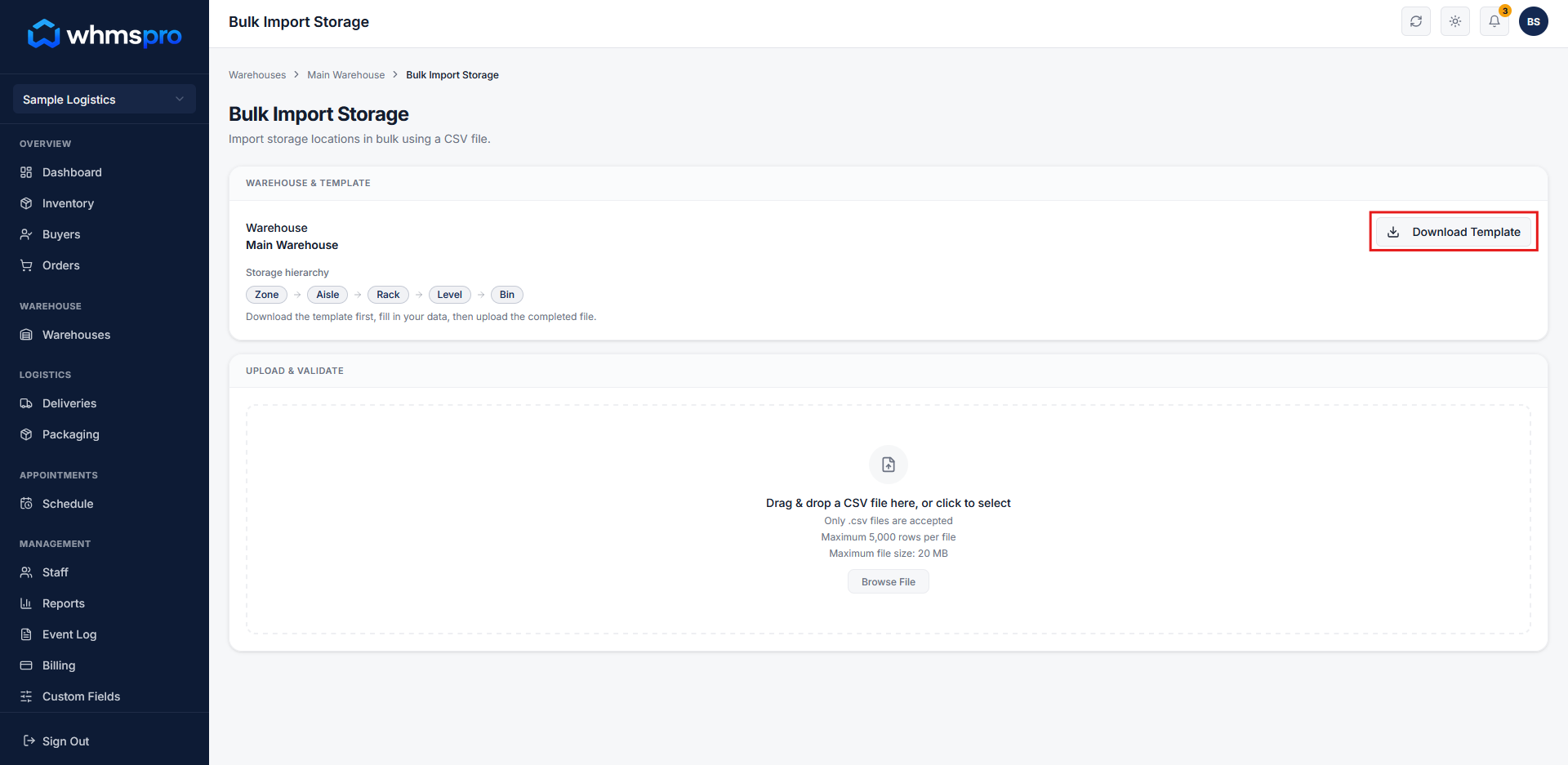
On the upload page, click on the Download Template button to get the CSV template file for your selected warehouse.
Update the CSV file with your storage data based on your requirements.
The downloaded template will match your selected warehouse's structure format (e.g., Zone -> Aisle -> Rack -> Level -> Bin).
Example:
- Z1 -> A1 -> R1 -> L1 -> B1
- Z1 -> A1 -> R1 -> L1 -> B2
- Z1 -> A1 -> R1 -> L1 -> B3
Make sure all values are filled correctly and consistently as per the template.
Step 3: Upload and validate data
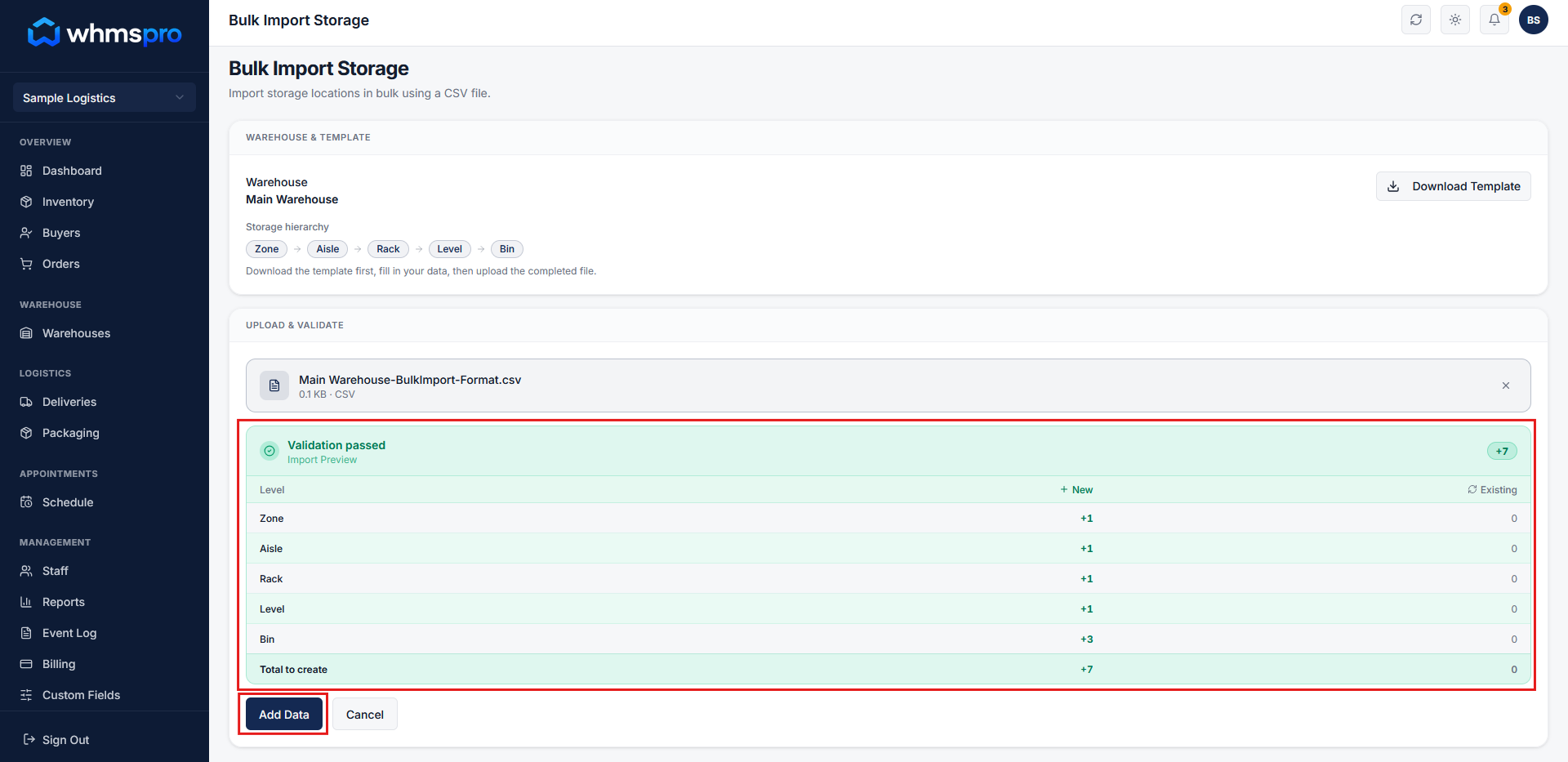
Upload your updated CSV file.
Validate the import preview to check for accuracy. If the preview is correct, click Add Data to complete the import.
Step 4: Manage storage locations
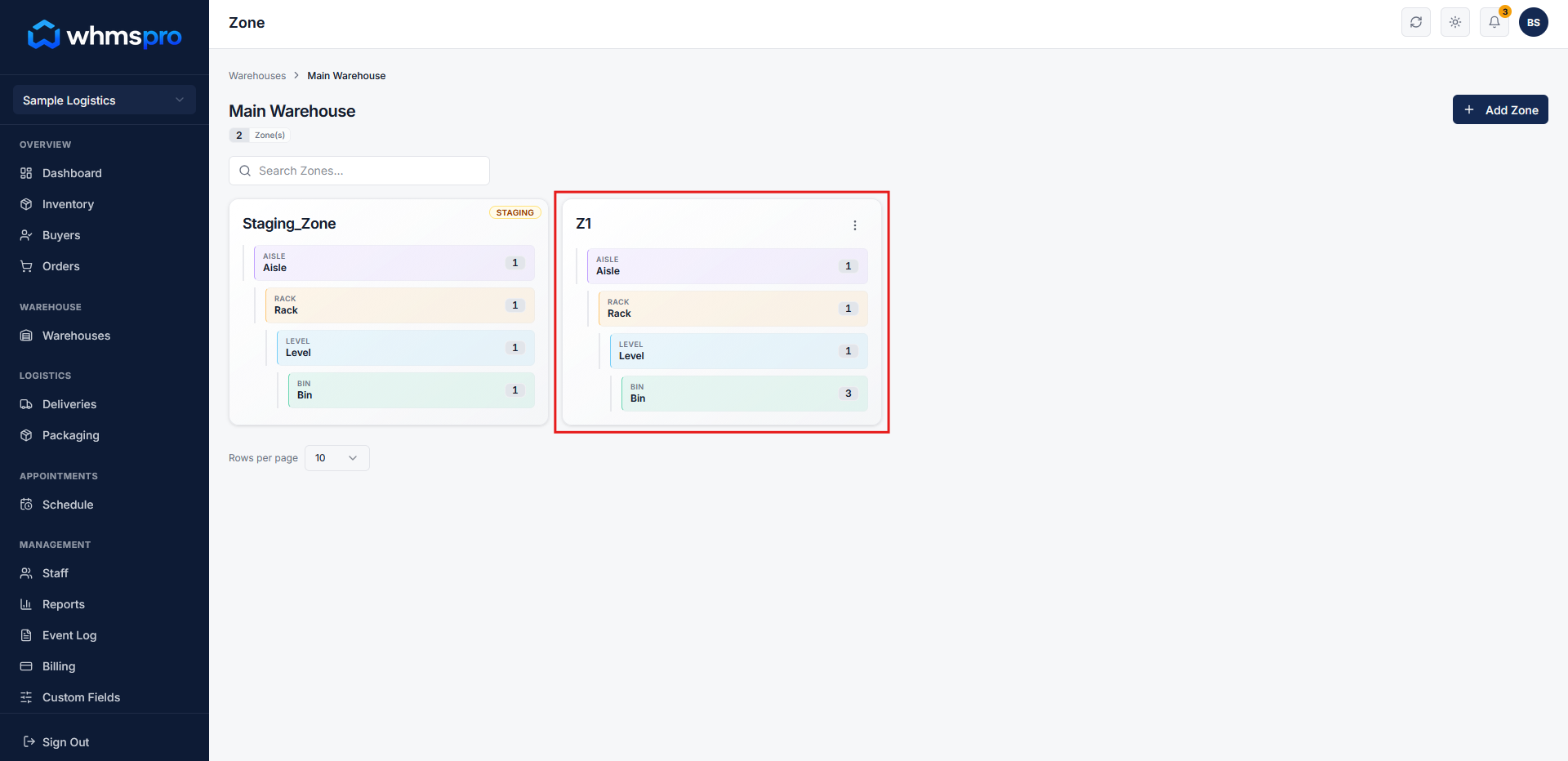
When you return to the Storage page, all your uploaded storage locations will be displayed.
From here, you can manage your storage locations, view if a location is available, or check items stored inside.
Step 5: Faster and efficient setup
Bulk storage creation helps you:
- Add multiple storage locations in one go
- Reduce manual entry effort
- Maintain structured and consistent data
This ensures a quick and scalable warehouse setup.