Feature spotlight
Create inventory & assign storage
With WHMSPro, you can create new inventory items, attach QR codes with custom templates, and assign storage locations via mobile QR scan or manual selection—all in one place.
Step 1: Access Inventory List & Add New Item
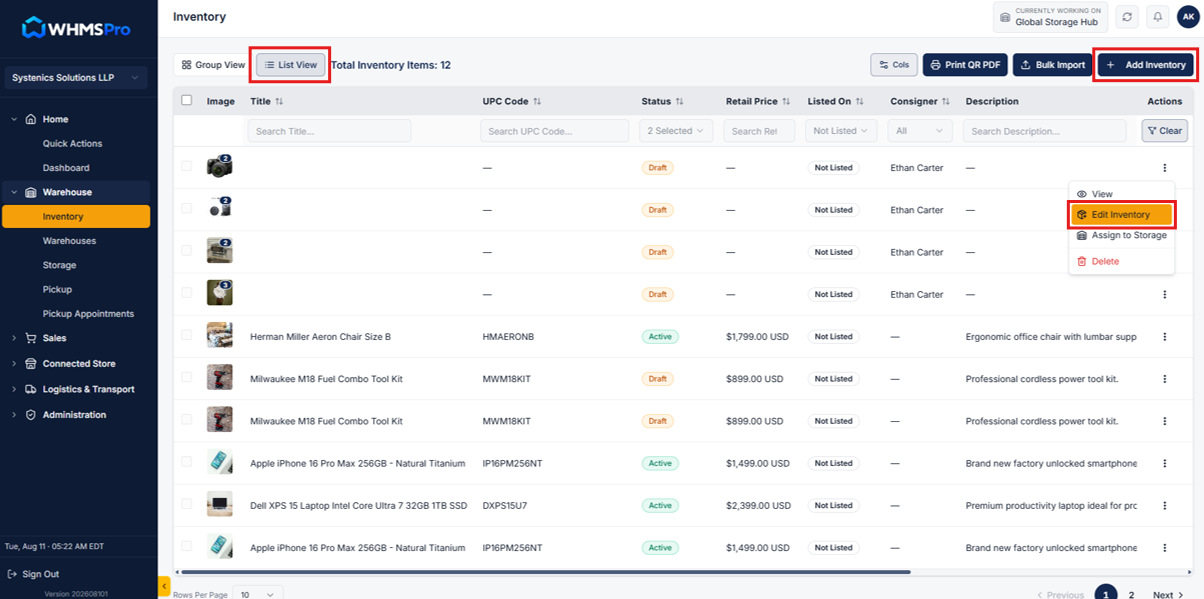
From the Dashboard, open Inventory and navigate to the List tab.
Click Add Inventory to create a new inventory item. If items have already been received from a Consignor, you can also locate them in the Inventory List and use the Action menu to edit the inventory.
Step 2: Add Inventory Details, Listing Info & Photos
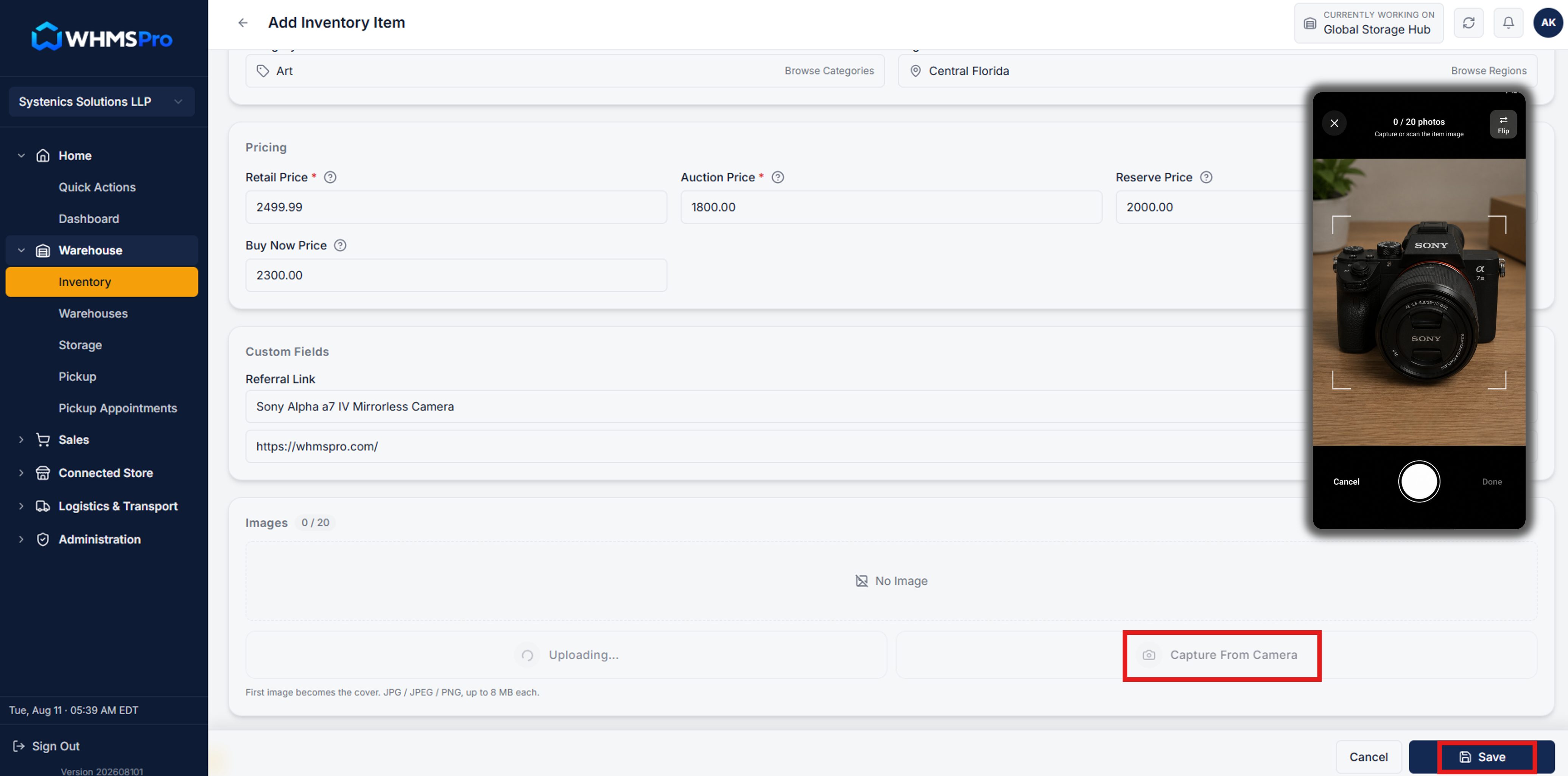
Fill out the comprehensive inventory intake form with required details across all sections:
- Inventory Information: Enter item Status, UPC Code, Title, and core item specifications.
- Listing Details: Select the destination platform, Category, Region, and platform-specific attributes.
- Pricing & Custom Fields: Set the pricing and custom field values.
- Photo Upload: Upload up to 20 high-resolution photos via desktop or capture photos on-site directly using your mobile camera.
Once all inventory information is complete, click Save to create the inventory record.
Step 3: Generate QR Code & Assign QR Template
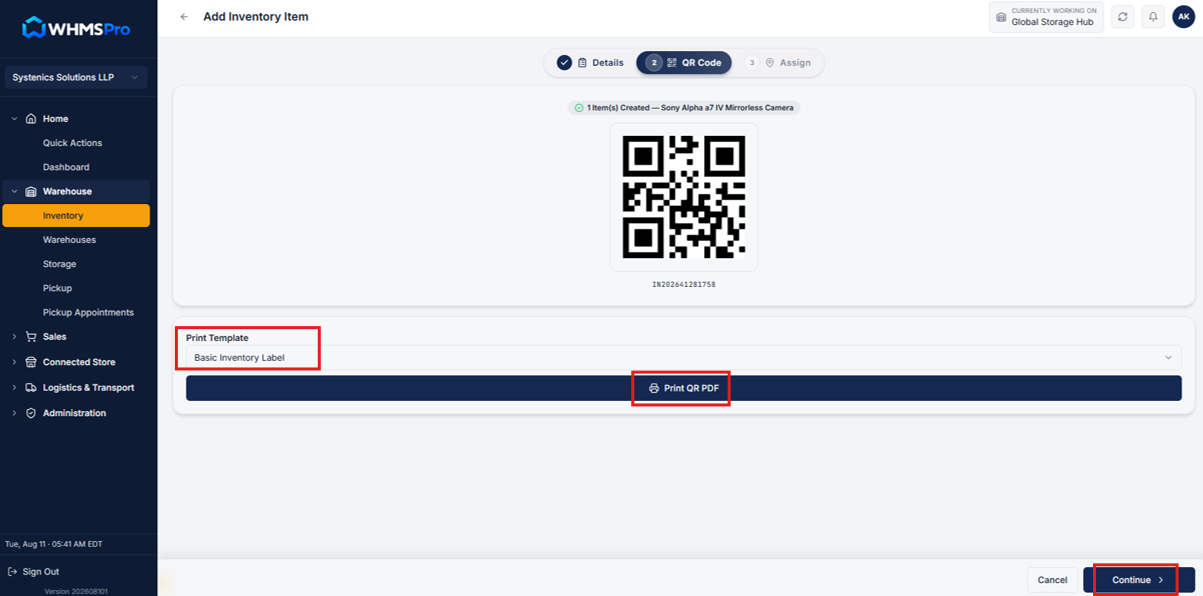
After creating the inventory item, WHMSPro automatically generates an Inventory ID and unique QR Code.
- Use the Print QR PDF option to print labels formatted with item QR code, titles, and storage paths.
- Attach the printed QR label directly to the physical piece of equipment or packaging before assigning storage.
Step 4: Assign Storage Location via QR Scan or Manual Selection
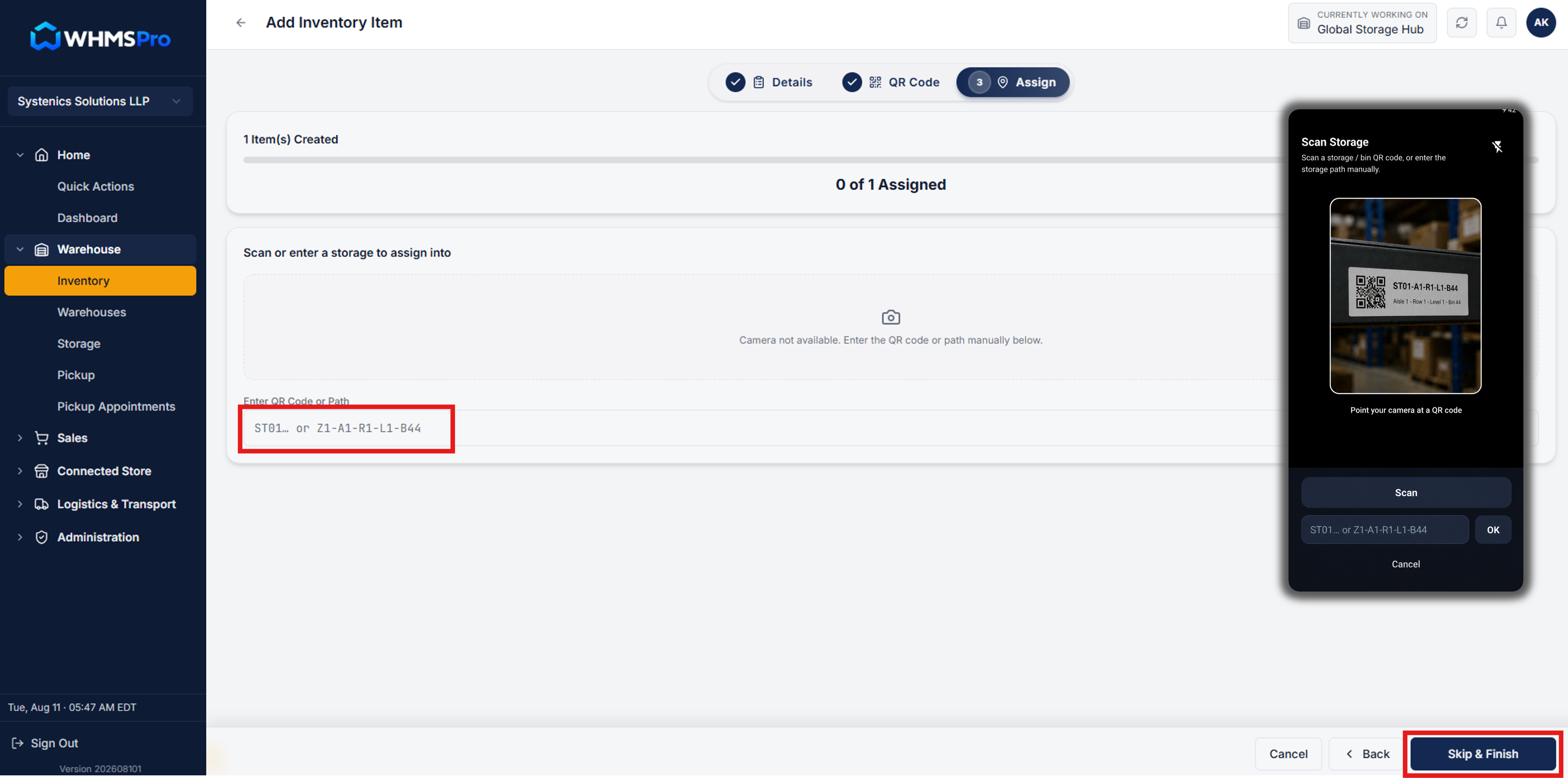
Assign the physical warehouse storage location to complete the intake workflow:
- Mobile QR Scan: Scan the storage bin, shelf, or zone QR code with your mobile device camera to instantly link the item to that exact location, then tap Finish.