Feature spotlight
Page permissions based on roles
Create role permissions, assign roles to staff members, and enforce access on login so each user only sees allowed pages and actions.
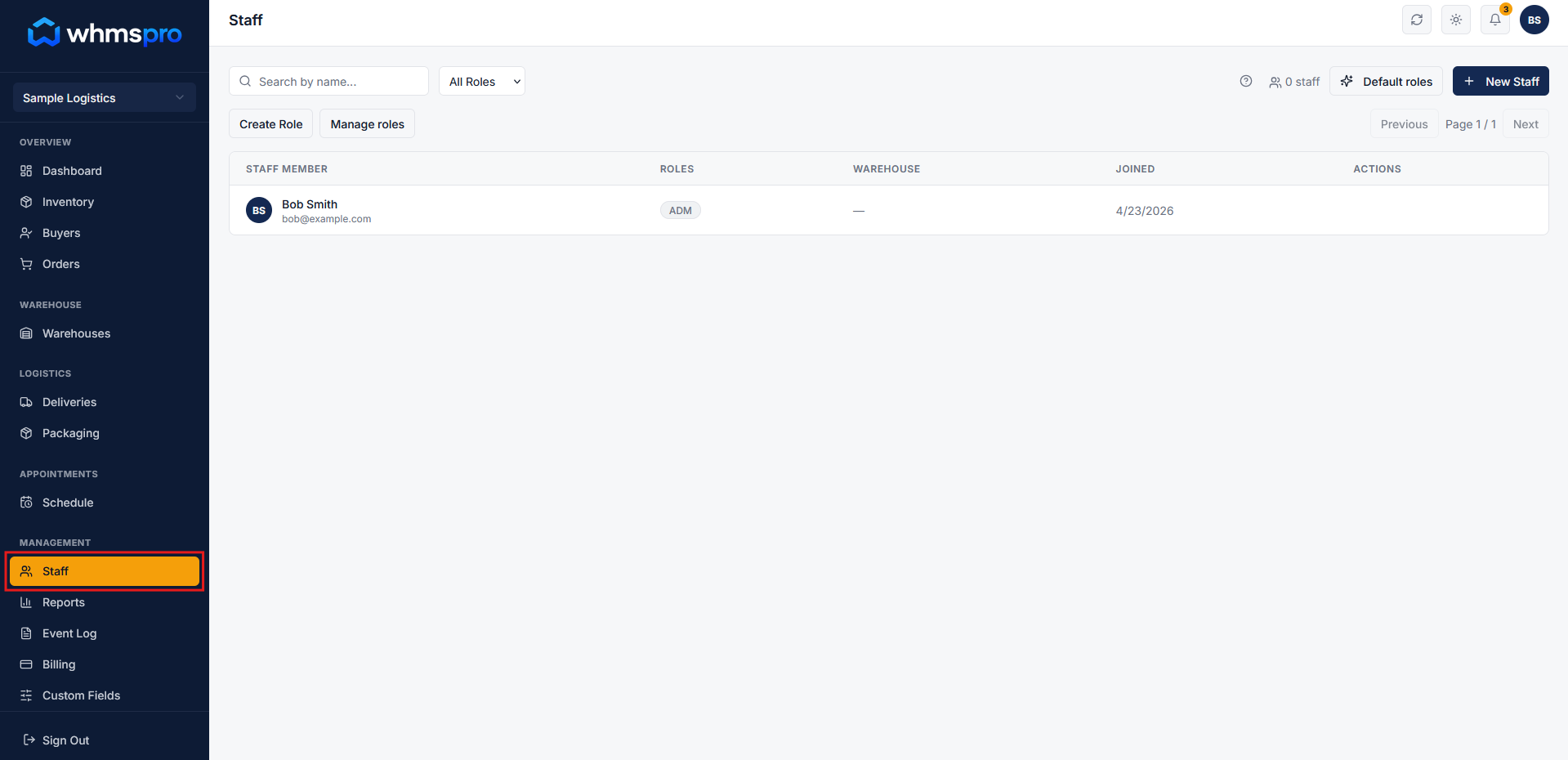
Step 1: Go to Staff section under Administration
Navigate to Staff under Administration from the menu.
Here, you can manage your team and assign roles with specific page permissions.
Step 2: Assign role with page permissions
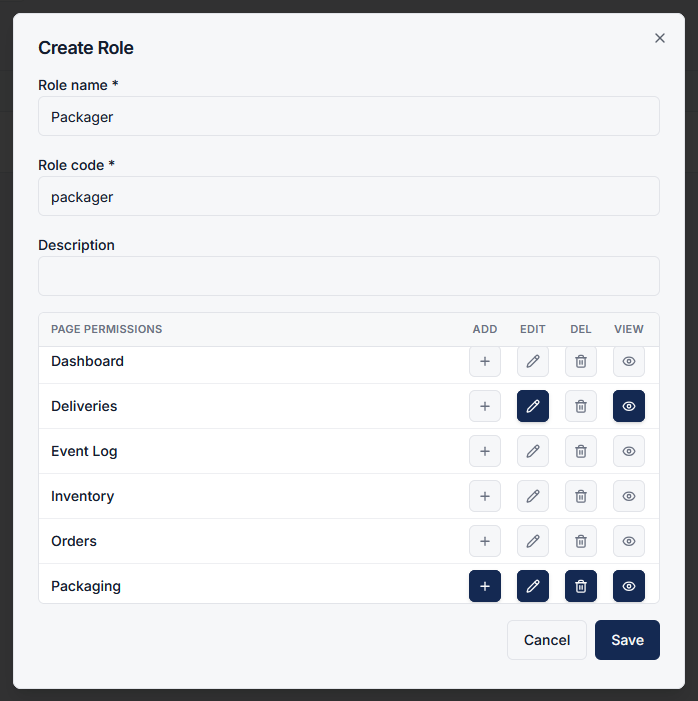
While creating or editing a role, assign Page Permissions based on access requirements.
For example, for a Driver role, you can grant access to specific pages like:
- Driver Job page
You can control actions such as View, Add, Edit, and Delete.
This ensures the role only has access to relevant sections of the system.
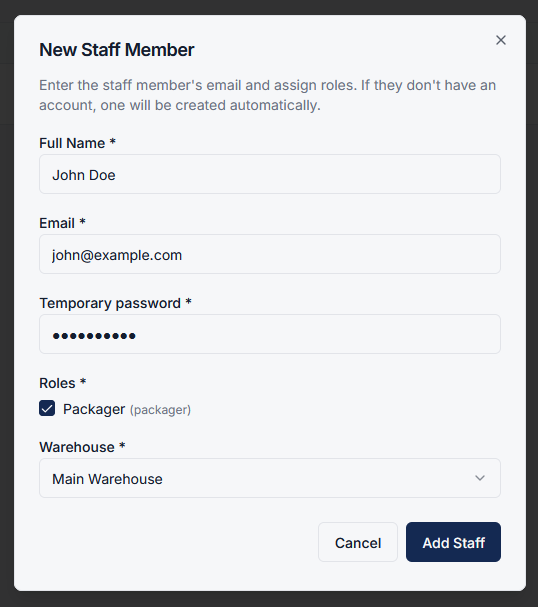
Step 3: Assign role to new staff member
Create a new staff member (or edit an existing one) and assign the Driver role to them.
Once assigned, the staff member inherits all the permissions defined in that role.
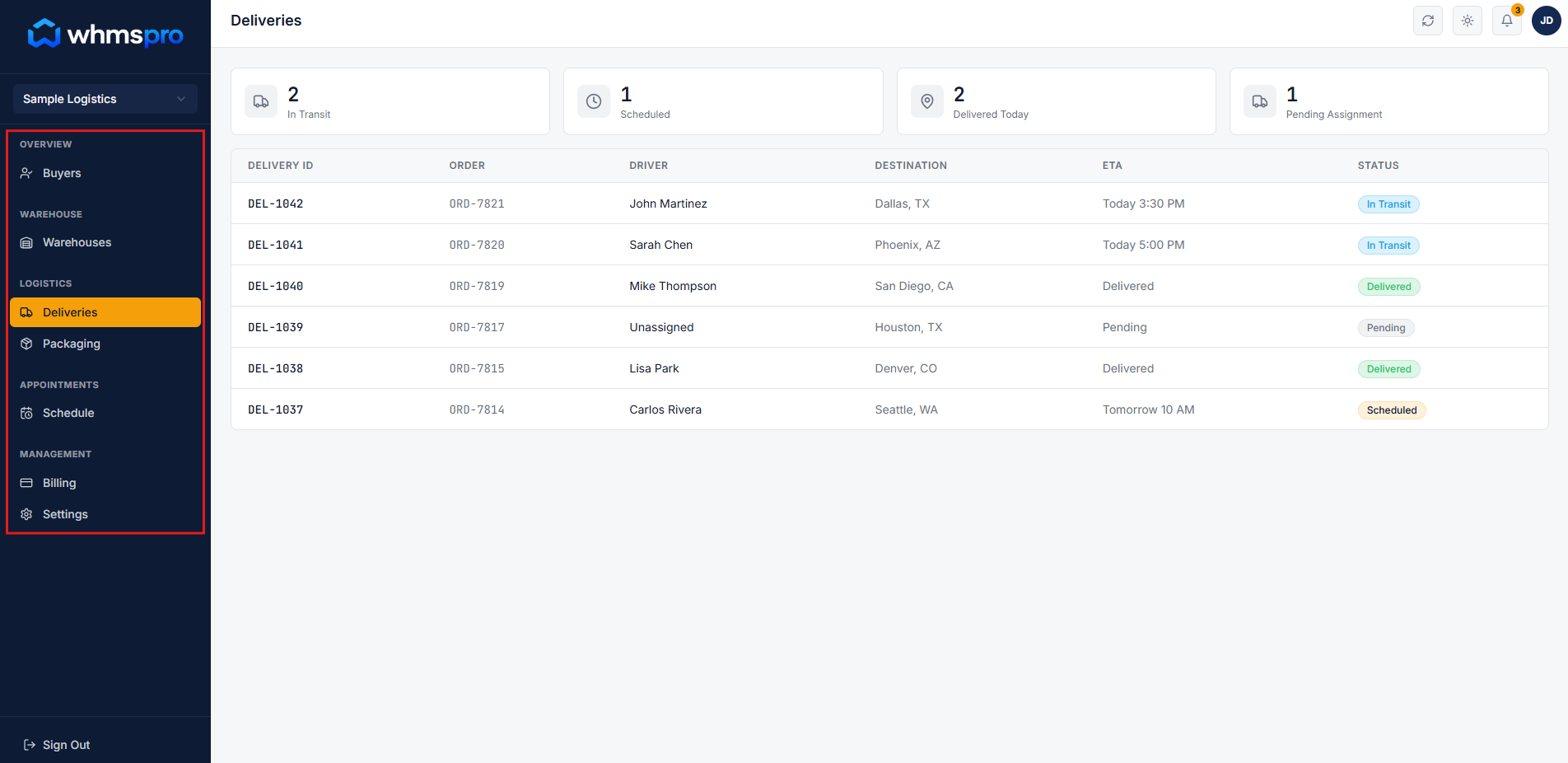
Step 4: Access control on login
When the staff member logs in, they will only see and access the pages they have permission for.
For example:
- Can access the Driver Job page
- Cannot view or access other restricted pages
This ensures controlled access and prevents unauthorized actions.
Step 5: Secure and streamline operations
Page-based permissions help you:
- Restrict access to sensitive areas
- Ensure staff only see what they need
- Improve security and accountability
This results in a safer and more efficient workflow across your system.