Feature spotlight
Interactive Dashboard
Unify warehouse visibility with an executive dashboard offering live counts, unassigned item queues, unlisted lot breakdown, and 9 concrete real-time reports.
Step 1: Real-Time Inventory & Storage Dashboard
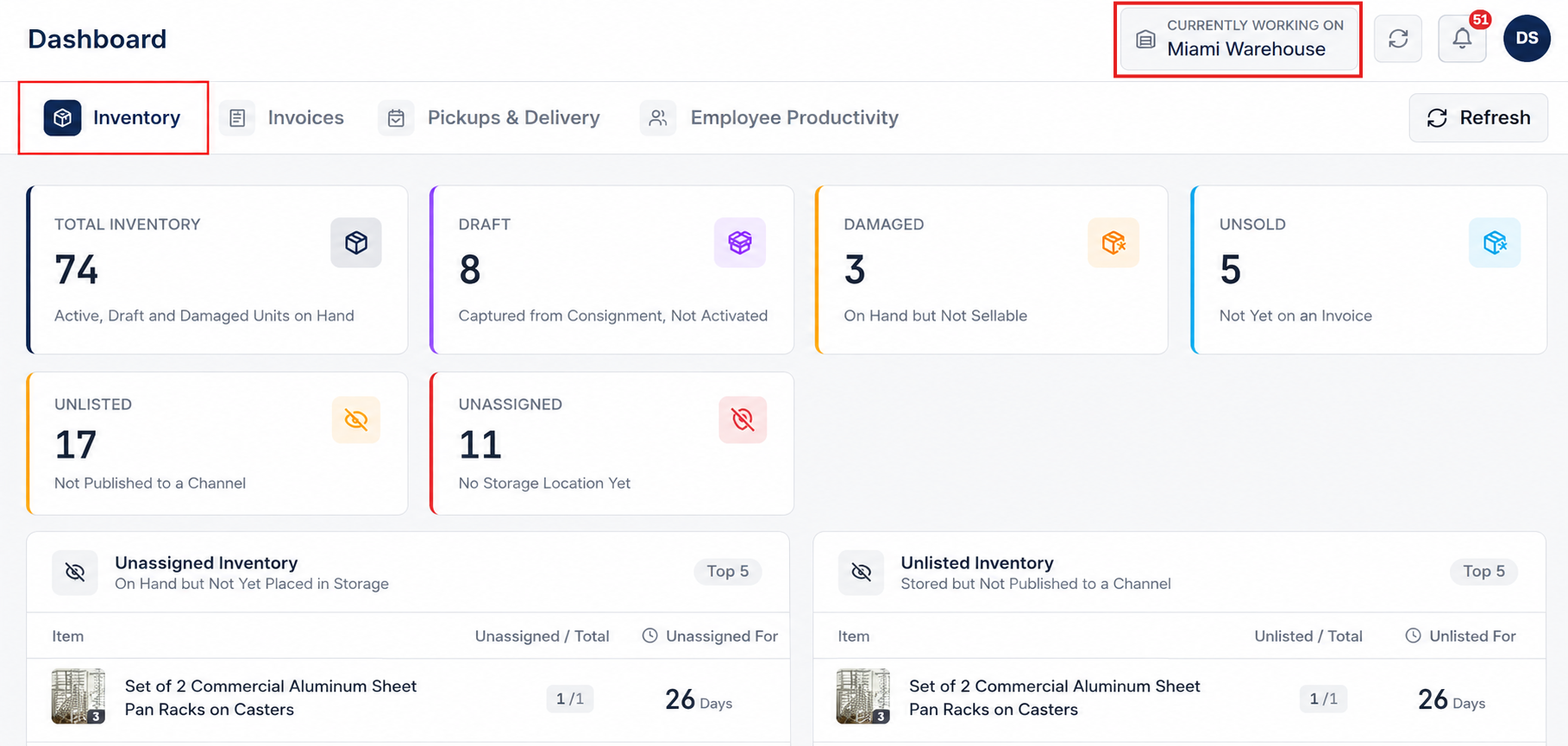
Go to Dashboard in the main navigation and select the Inventory tab. This view provides complete executive and operational visibility over physical inventory counts, storage assignments, and pending stock across all your facilities.
- Inventory Status Summary: Monitor live metrics for Total Inventory (Active, Draft, and Damaged units), Unsold Items (on-hand units not assigned to invoices), Unlisted Items (stored items pending channel publishing), and Damaged Stock.
- Unassigned Storage Queue: Track items stored in the facility that await designated bin location placement, complete with unassigned unit ratios and aging counts (Unassigned For days).
- Unlisted & Draft Stock Breakdown: Review received inventory pending publishing to connected sales channels (AuctionWorx) alongside aging indicators (Unlisted For days).
- Quick Modal Inspection: View item photos and product details directly from dashboard tables without leaving the overview.
Step 2: Invoices & Revenue Analytics Dashboard
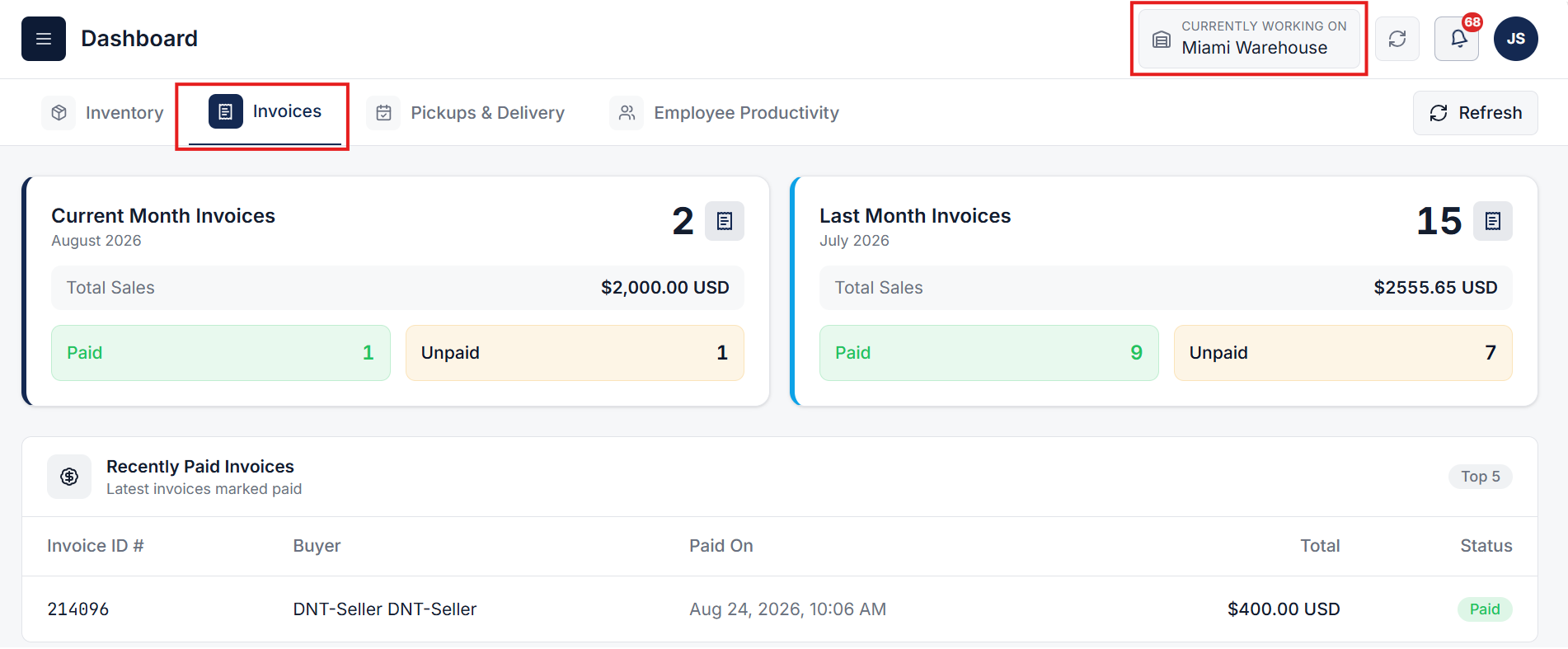
Switch to the Invoices tab on the Dashboard to analyze sales performance, track cash flow trends, and inspect recently paid transactions across your enterprise.
- Monthly Revenue Performance: Track and compare Current Month Invoices vs. Last Month Invoices with live total sales metrics.
- Sales & Payment Breakdown: View real-time aggregate totals for Total Sales, Paid Revenue, and Unpaid Balances.
- Recently Paid Invoices Audit Log: Inspect late-breaking paid transactions showing Invoice ID #, Buyer details, Payment Date, Total Amount, and Payment Status flags.
- Facility Filtering: Filter sales revenue metrics by individual warehouse facility from the top dropdown menu to evaluate regional financial growth.
Step 3: Pickups & Delivery Appointments Dashboard
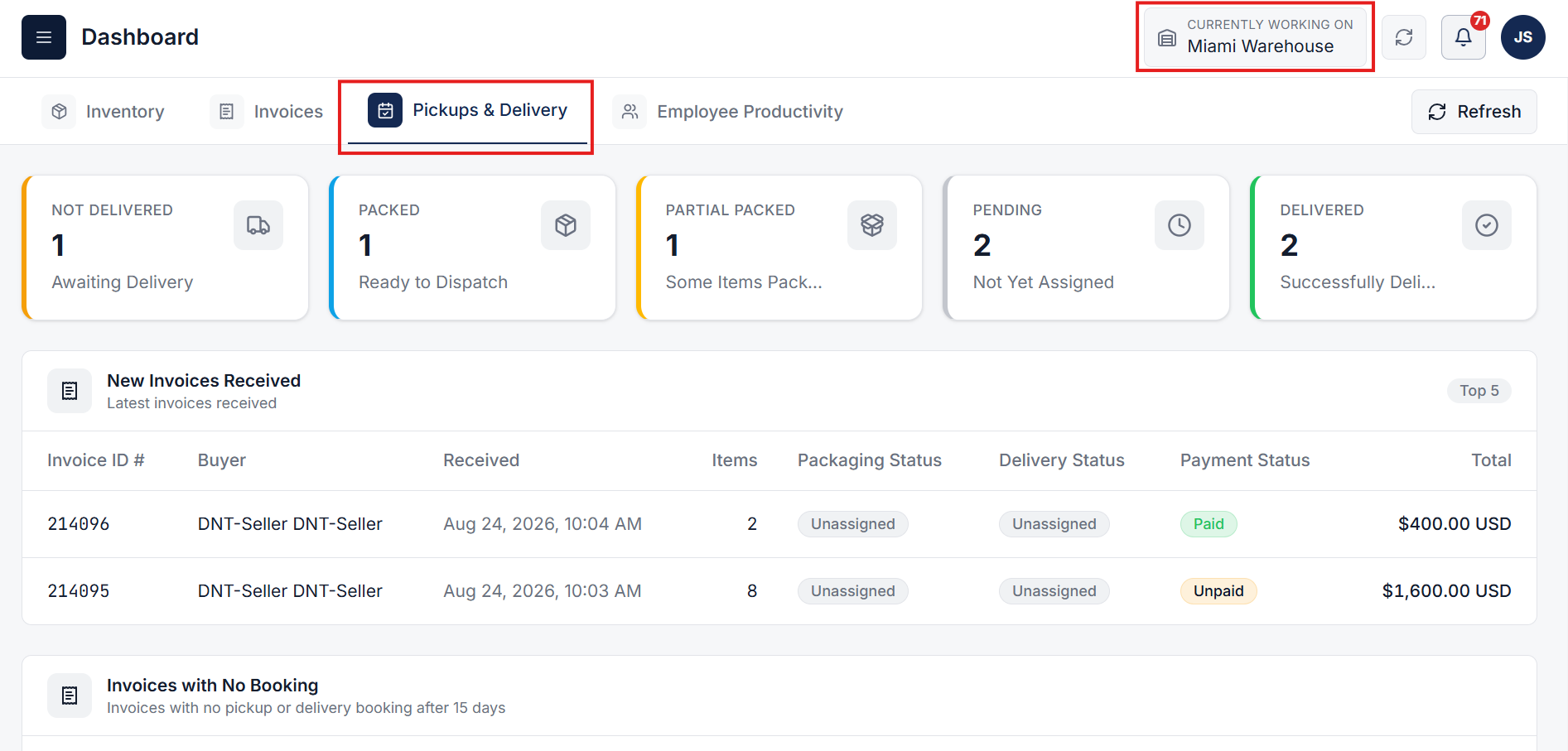
Select the Pickups & Delivery tab to manage fulfillment progress, track customer pickup bookings, and streamline outbound delivery operations.
- Fulfillment Execution Status Cards: Monitor real-time order counts across Not Delivered, Packed (Ready to Dispatch), Partial Packed, Pending (Not Yet Assigned), and Delivered stages.
- Today's Buyer Bookings Table: Track daily scheduled customer pickups and delivery appointments with reference codes, buyer profiles, time slots, order totals, and live statuses (Confirmed, Checked-In, Completed, Cancelled, No-Show).
- New Invoices Received Report: Monitor newly received orders with real-time packaging, delivery, and payment status tracking.
- Unbooked Invoice Exception Alerts: Identify orders lacking pickup or delivery bookings after configurable threshold days, with direct actions to schedule dispatch.
Step 4: Employee Productivity & Floor Activity Dashboard
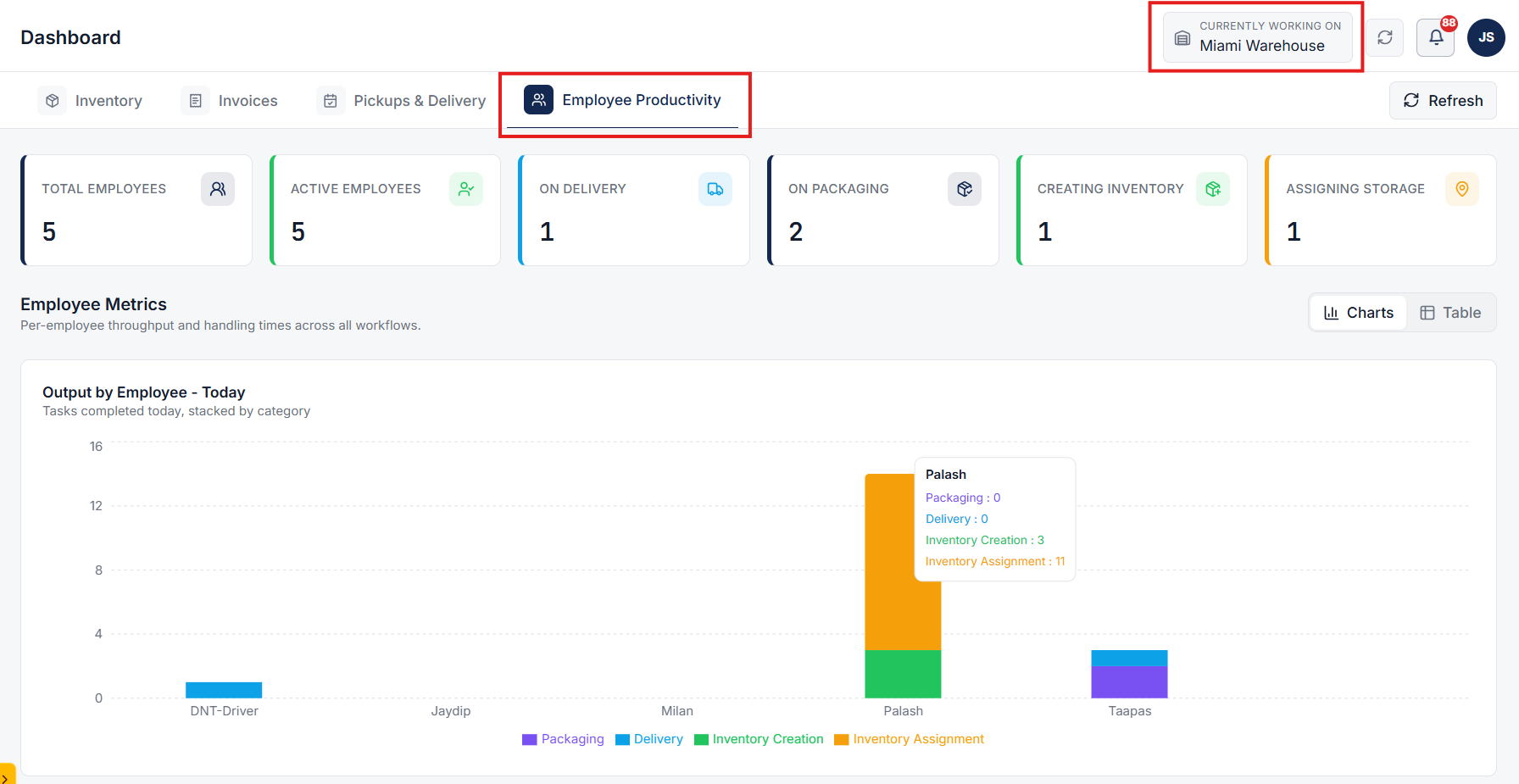
Navigate to the Employee Productivity tab to gain real-time visibility into staff presence, active job assignments, and task throughput across all warehouse workflows.
- Workforce Status Overview: View active shift counts across categories including Total Employees, Active Workers, On Packaging, On Delivery, Creating Inventory, and Assigning Storage.
- Live Output Charts: Monitor daily completed task counts per worker stacked by operational category (Pack, Deliver, Created, Assigned).
- Handling Times & Benchmarks: Analyze average handling times (minutes per task) and compare overall team throughput (Today vs. Yesterday).
- Worker Status & Task Log: Access detailed employee tables displaying active job titles, job start timestamps, and individual shift performance metrics.