Feature spotlight
Unlimited storage
Model warehouse storage capacity without introducing artificial storage limits as your operation expands.
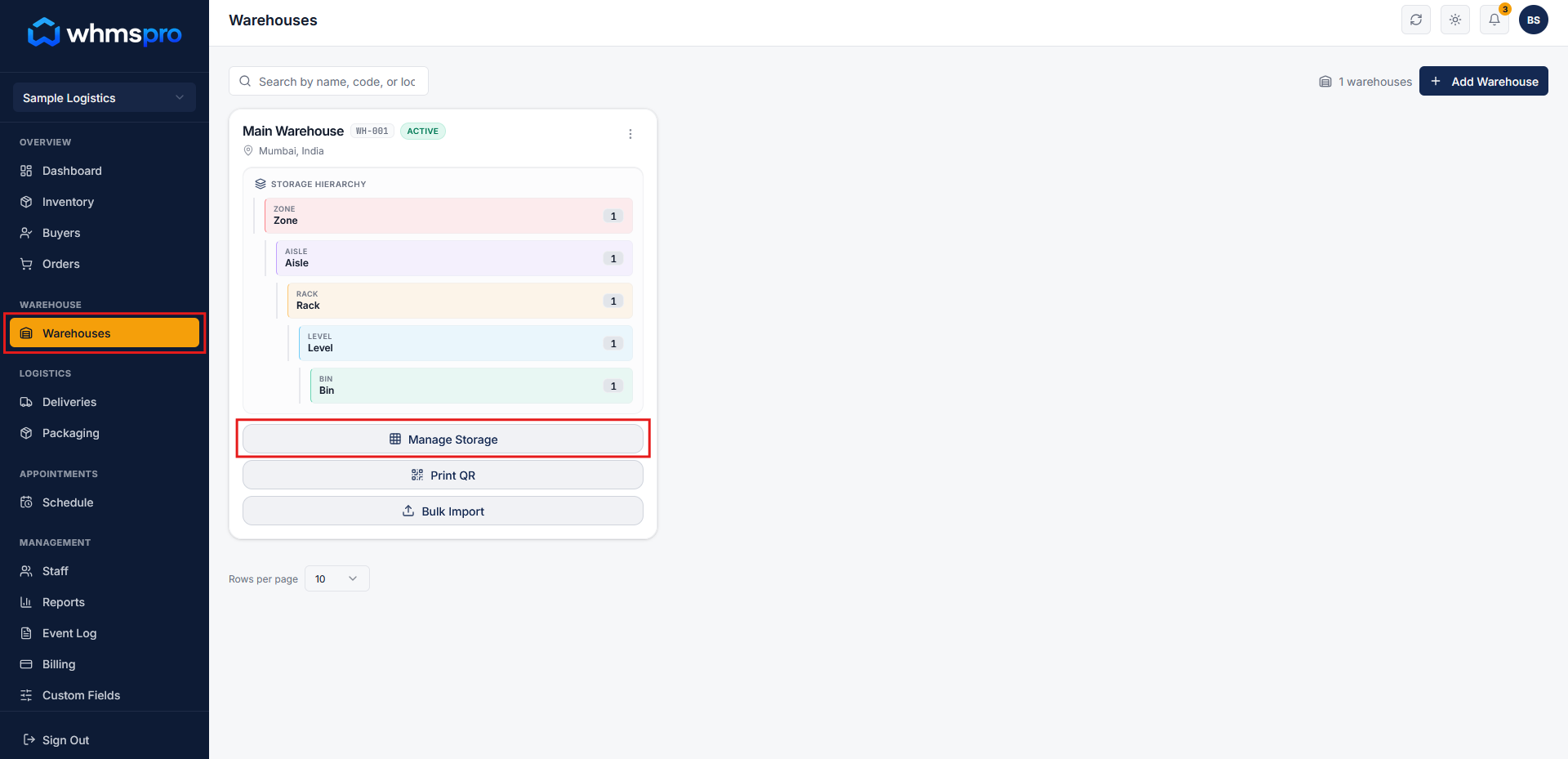
Step 1: Go to Warehouses section
Navigate to the Warehouses section from the menu.
Click on the Manage Storage button for the warehouse where you want to organize storage.
Step 2: Create storage zones
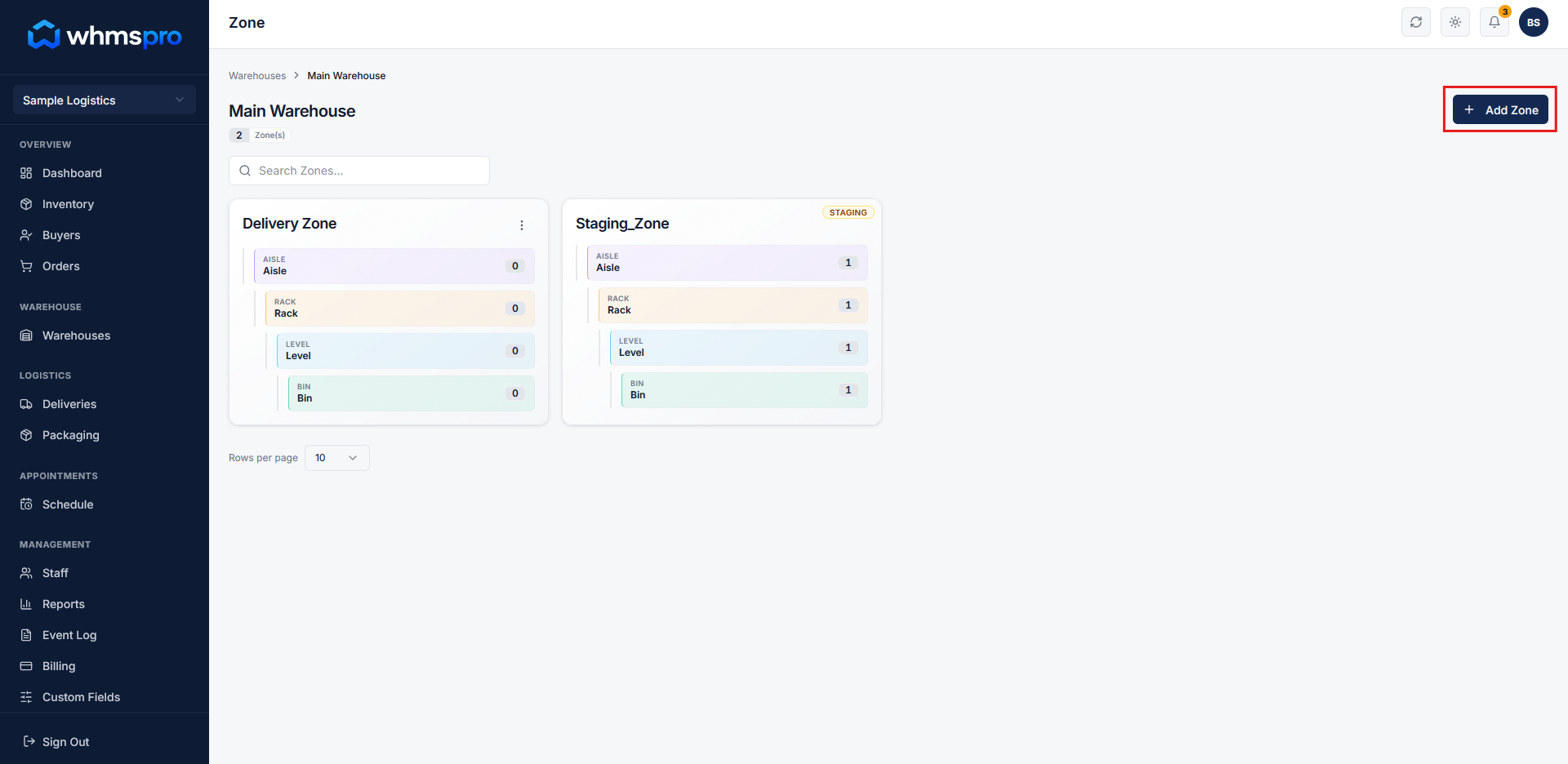
On the storage management page, click on the Add Zone button to create a new zone within the warehouse.
- A warehouse can have multiple zones
- Zones help you divide storage based on category, area, or purpose
Step 3: Build storage hierarchy inside zones
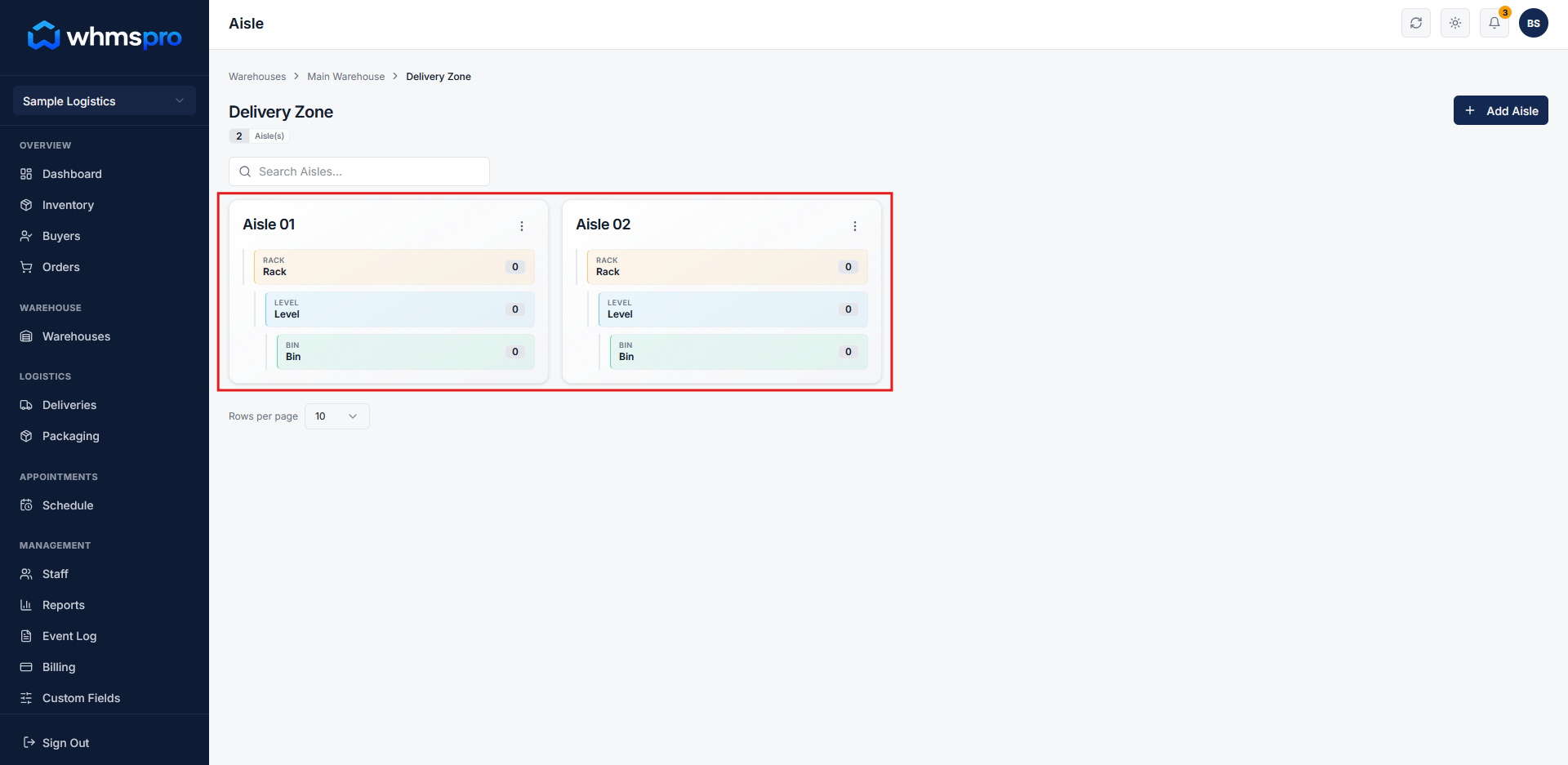
After creating a zone, click on the created zone to open it.
Now you can create the complete storage structure inside it:
- Add Aisles inside the zone
- Inside each aisle, create Racks
- Inside racks, define Levels
- Inside levels, create Bins
Structure flow:
Zone → Aisle → Rack → Level → Bin
- Each level of the structure can have multiple entries (e.g., multiple aisles, racks, etc.)
- This hierarchy helps in precise organization and easy navigation
Step 4: Store items in bins
Bins are the smallest storage units where items are actually stored.
By structuring your warehouse into zones, aisles, racks, levels, and bins, you can:
- Easily locate items
- Optimize storage space
- Improve inventory accuracy
Step 5: Manage storage efficiently
With unlimited storage structure support, you can scale your warehouse without limitations.
You can create as many zones, aisles, racks, levels, and bins as needed.
This ensures a flexible, well-organized, and scalable storage system for your operations.