
Integration Guide
Auction & Fixed Price inventory meets warehouse execution
AuctionWorx Integration Guide
Complete guide to connecting AuctionWorx directly with WHMSPro. Learn how to automatically sync settings, categories, regions, custom fields, and consignors, publish fixed-price listings and auction lots, manage buyer pickup appointments, and track all warehouse operations seamlessly.
Overview
WHMSPro's AuctionWorx integration connects your physical warehouse operations directly to your AuctionWorx auction platform. Works seamlessly with both AuctionWorx and AuctionWorx Event Edition.
With this integration active, your team can:
- Automatically receive buyers, consigners, and invoices from AuctionWorx inside WHMSPro
- Create and publish warehouse inventory as fixed-price listings, simple auctions, or auction lots for events in AuctionWorx
Prerequisites
Before connecting AuctionWorx to WHMSPro, ensure the following are in place:
- An active WHMSPro account with at least one warehouse configured
- An active AuctionWorx account
- Categories, Regions, Consigners, and Custom Fields preferably already added in AuctionWorx
- Admin or Seller credentials for your AuctionWorx account
Connecting AuctionWorx to WHMSPro
Follow these steps to establish the connection between WHMSPro and AuctionWorx.
Step 1: Open Connected Services in WHMSPro
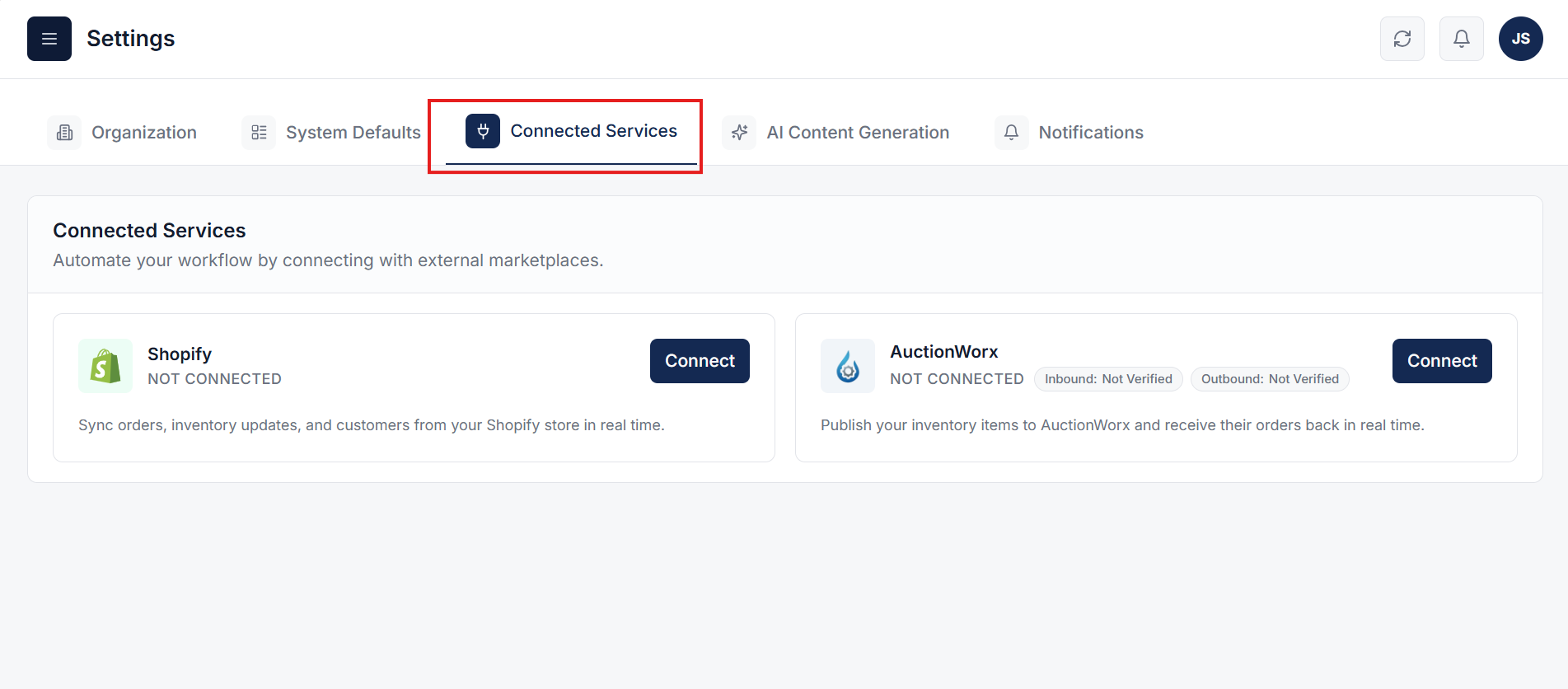
In WHMSPro, navigate to Settings under the Administration section from the main navigation. Then go to the Connected Services tab. You will see a list of available connectors. Click the Connect button on the AuctionWorx tile.
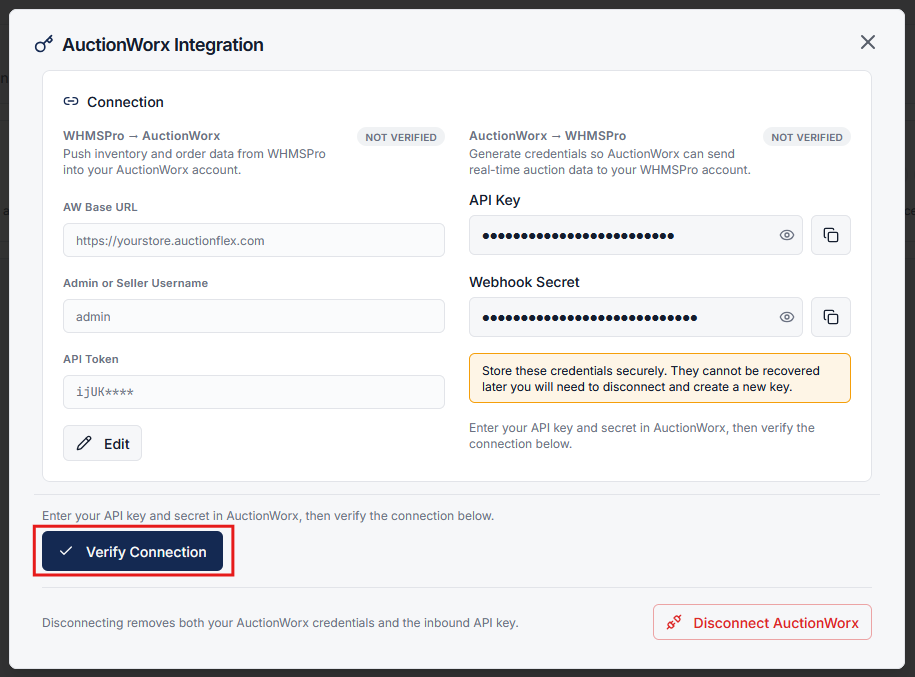
Step 2: Enter Your AuctionWorx Credentials
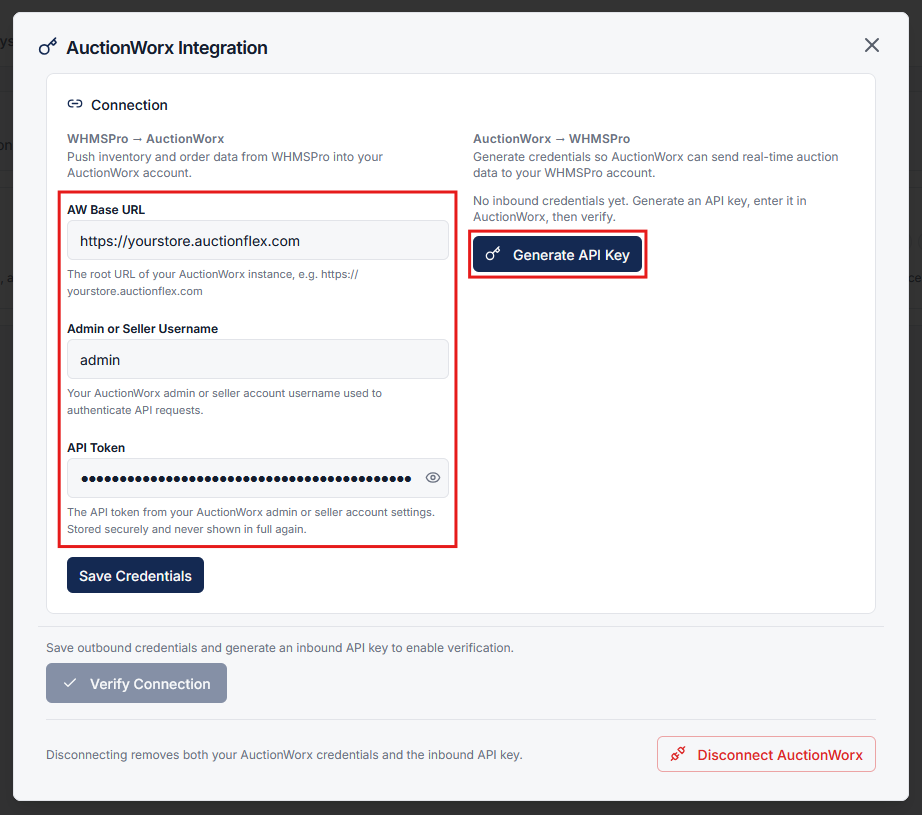
A popup will appear. Enter the following details:
- AW Base URL - your AuctionWorx site URL (e.g.,
https://yourstore.auctionflex.com) - Admin or Seller Username - the username of an admin or seller account (all published inventory items will be created in this specified user's AuctionWorx account)
- API Token - the API token of the user whose username you entered above
Step 3: Generate API Key and Secret
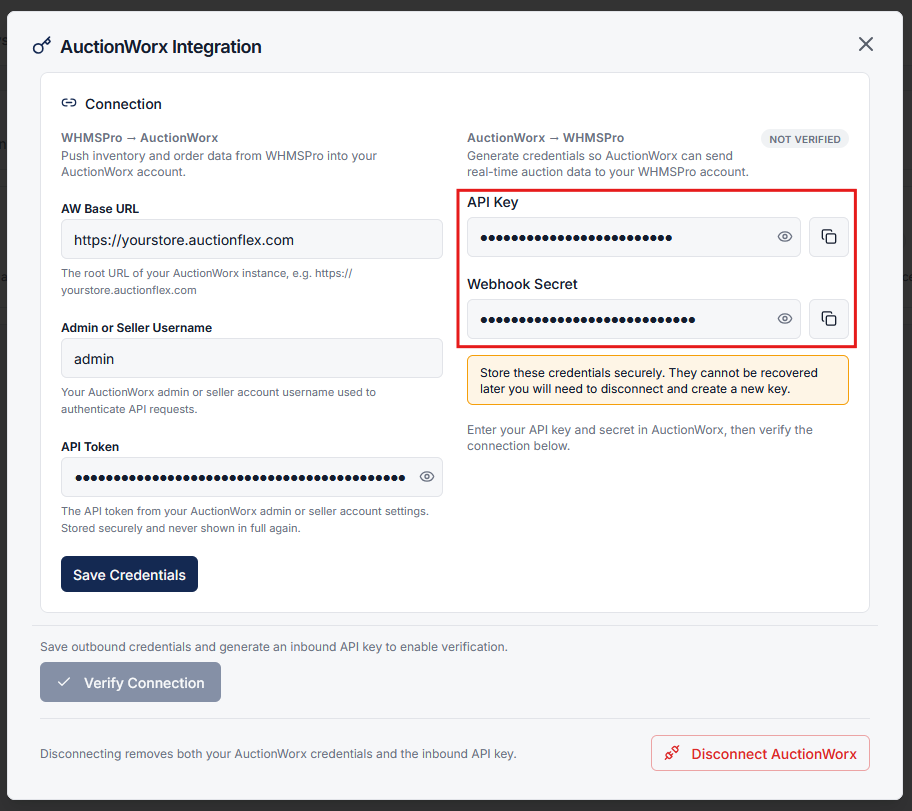
Click the Generate API Key button to generate your API Key and Secret Key. Copy both generated keys.
Step 4: Add Keys in AuctionWorx Admin Panel
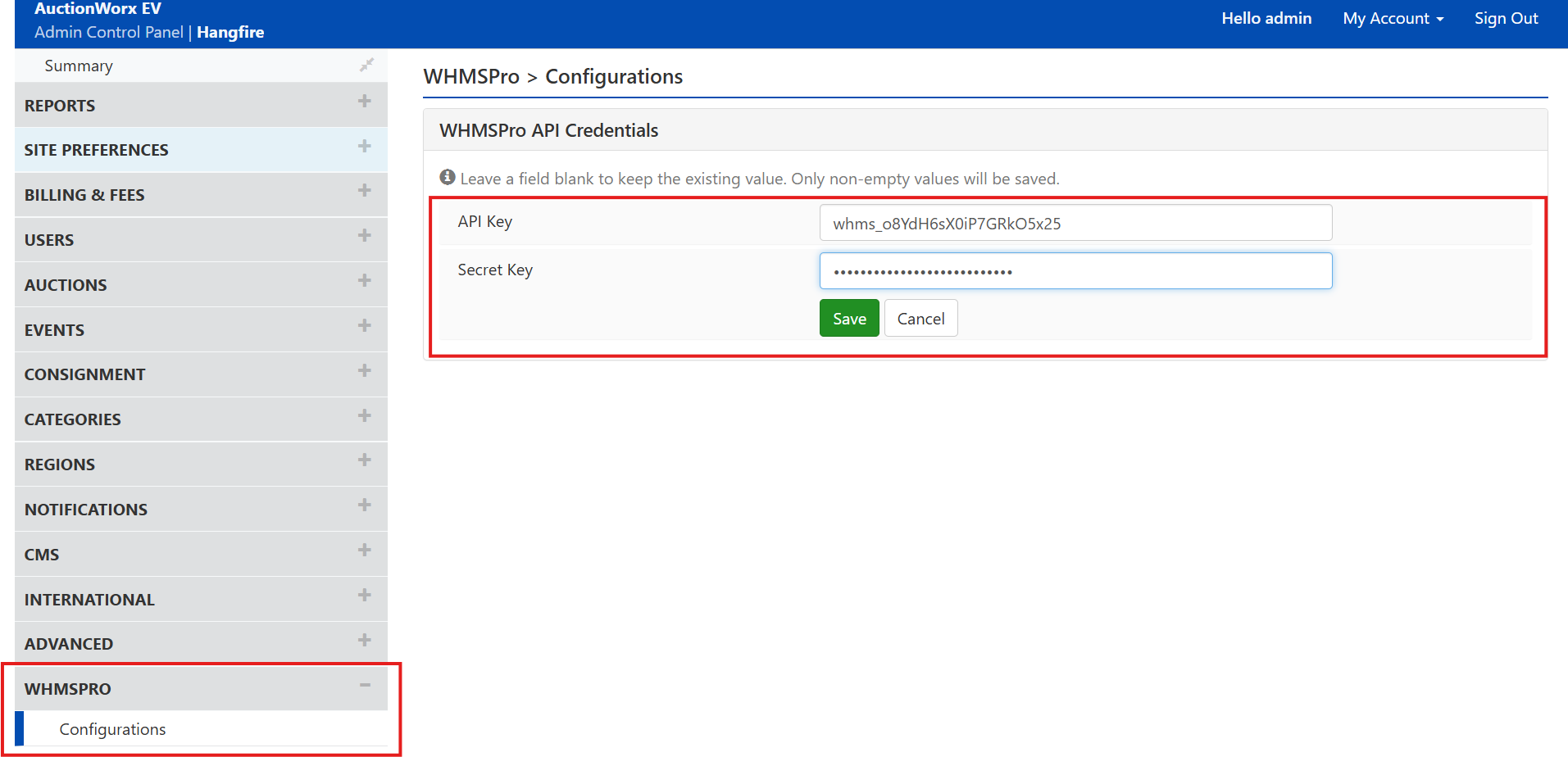
Go to the Admin Panel of AuctionWorx and navigate to the WHMSPro Configuration page. Click the Update Keys button, paste the generated API Key and Secret Key into the respective fields, and click Save.
Step 5: Verify Connection
Go back to WHMSPro and click the Verify Connection button. Once the connection is verified, your AuctionWorx account will automatically sync with WHMSPro.
What Syncs After Connection
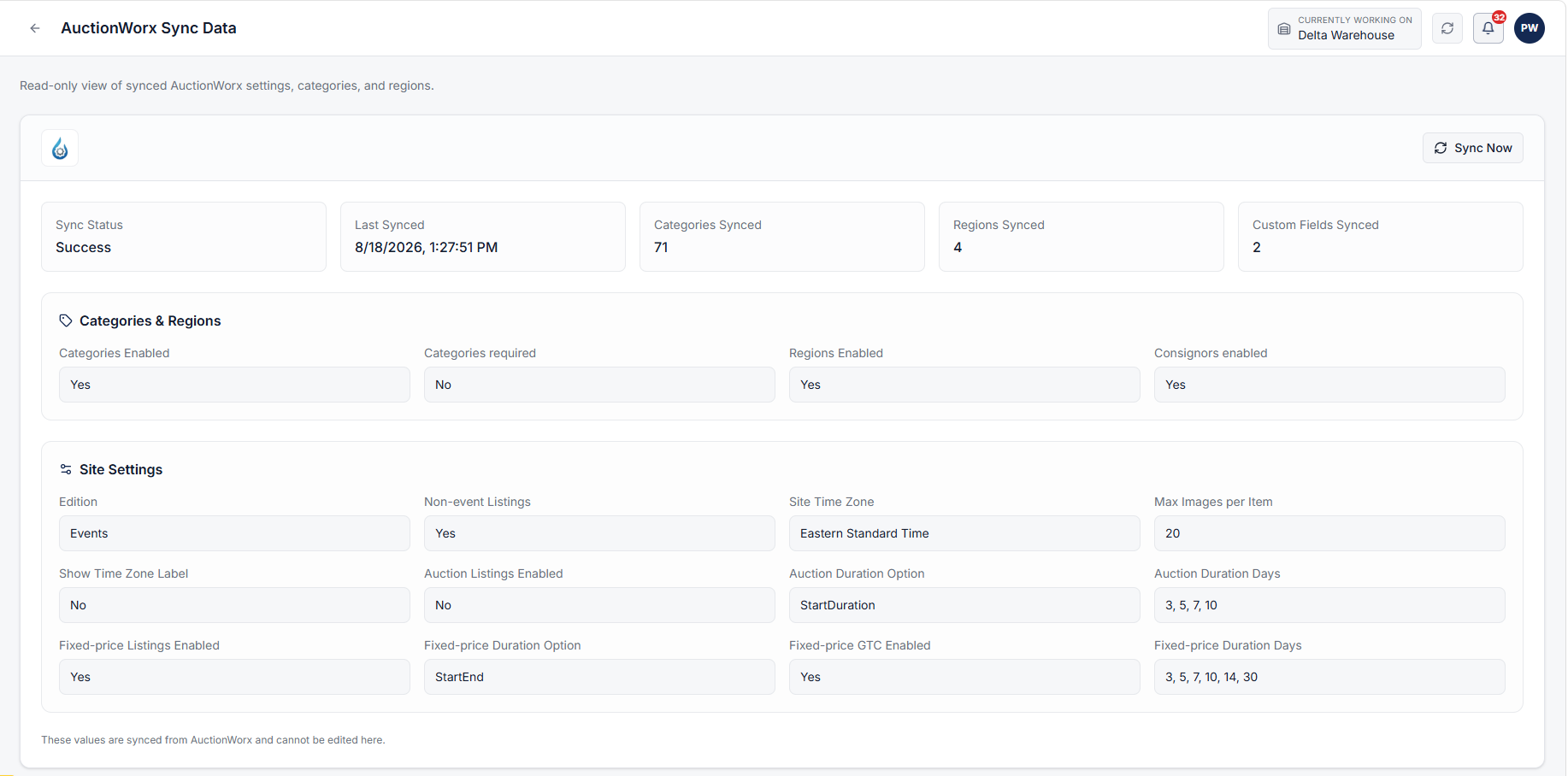
Once the connection is verified, your AuctionWorx data automatically syncs with WHMSPro:
- AuctionWorx Metadata & Settings: Essential system metadata, category states, region configurations, custom lot fields, consigners, and listing parameters are automatically synced to dynamically enable/disable integration features and maintain seamless mapping between WHMSPro and AuctionWorx.
Publishing Inventory
You can publish WHMSPro inventory items to AuctionWorx either as fixed-price listings or as auction lots.
Note:
- When a staff member with a Seller role creates and submits an inventory publish request, those items will be added to that specific seller's AuctionWorx account. Otherwise, the published items will be added to the primary user account configured during the initial connection setup.
- Once an inventory item is selected for publishing (either as fixed-price or an auction lot), it cannot be selected for any other publish request.
Publish as Fixed Price
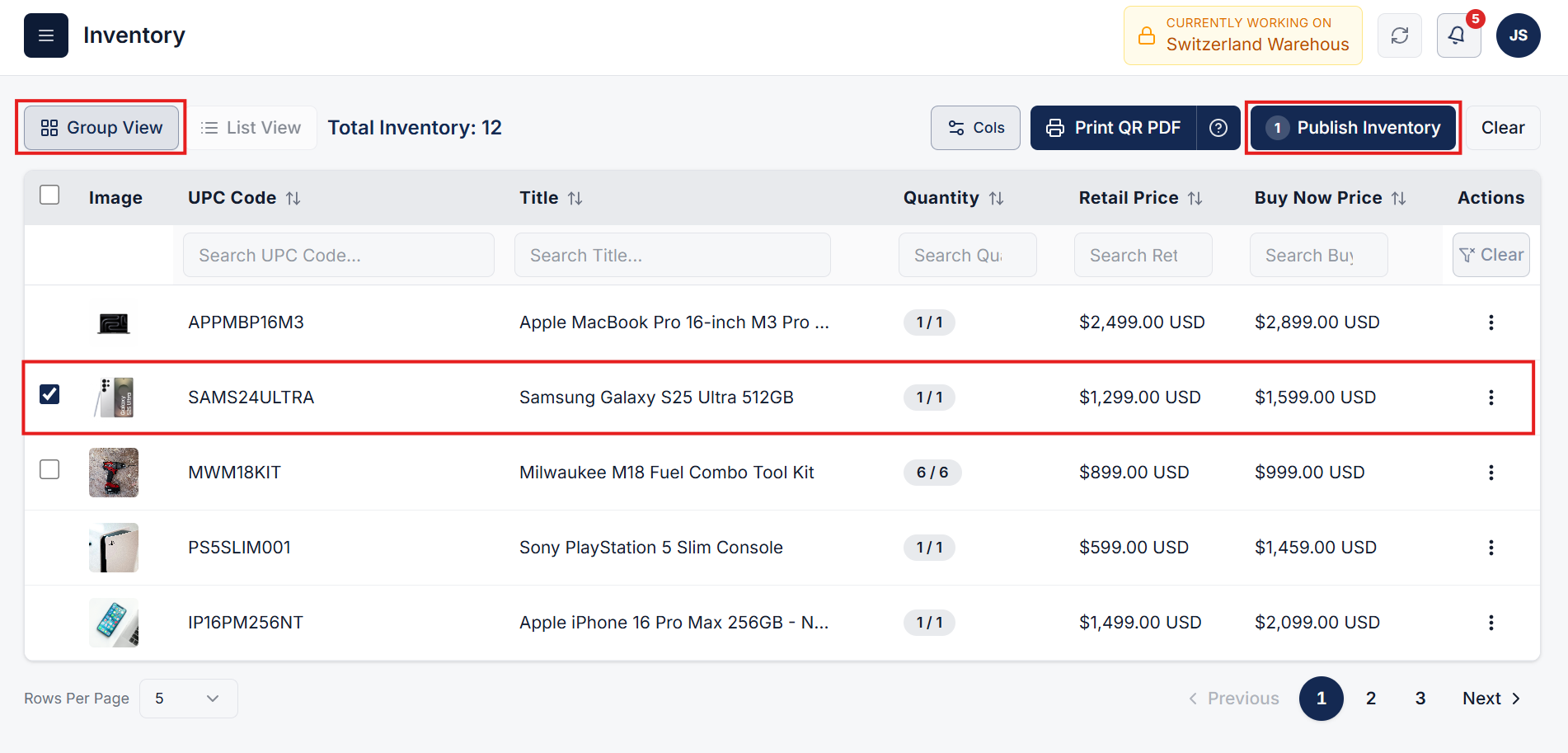
- Navigate to the Inventory page under the Warehouse section
- Switch to the Group View and select the item you want to publish
- Click the Publish Inventory button
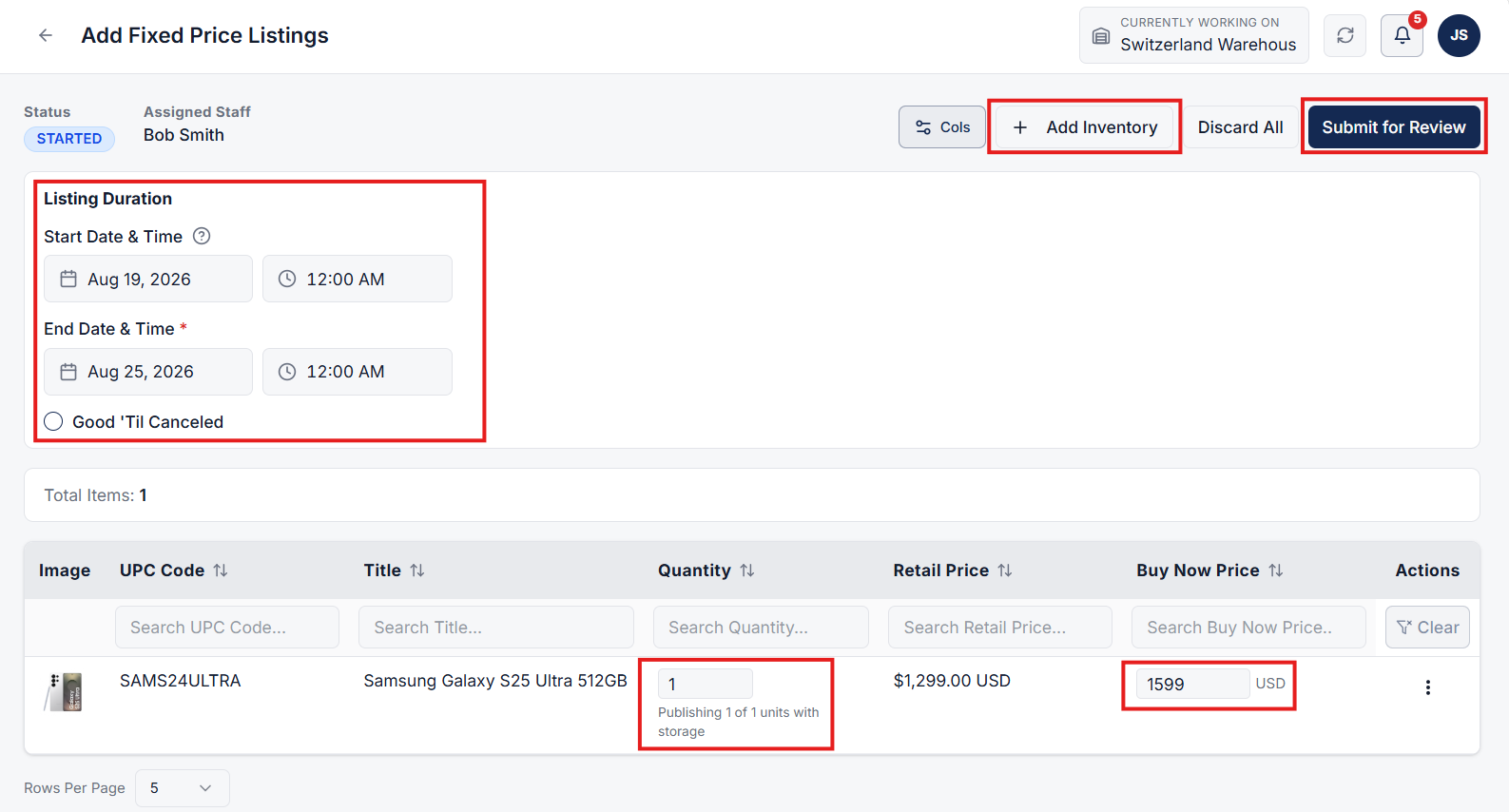
- On the publish page, fill in the following details:
- Listing Duration - this field adapts based on your AuctionWorx settings. For example, if the Listing Duration option is set to "End Date Only", only an End Date and Time field will appear
- Quantity - the quantity you want to publish
- Buy Now Price - the fixed sale price
- To add more items, click the Add Items button. Use the 3-dot menu in the Actions column to view inventory details or remove an item from the list
- Once everything is set, click Submit for Review. The reviewer will review the submission and publish the listing.
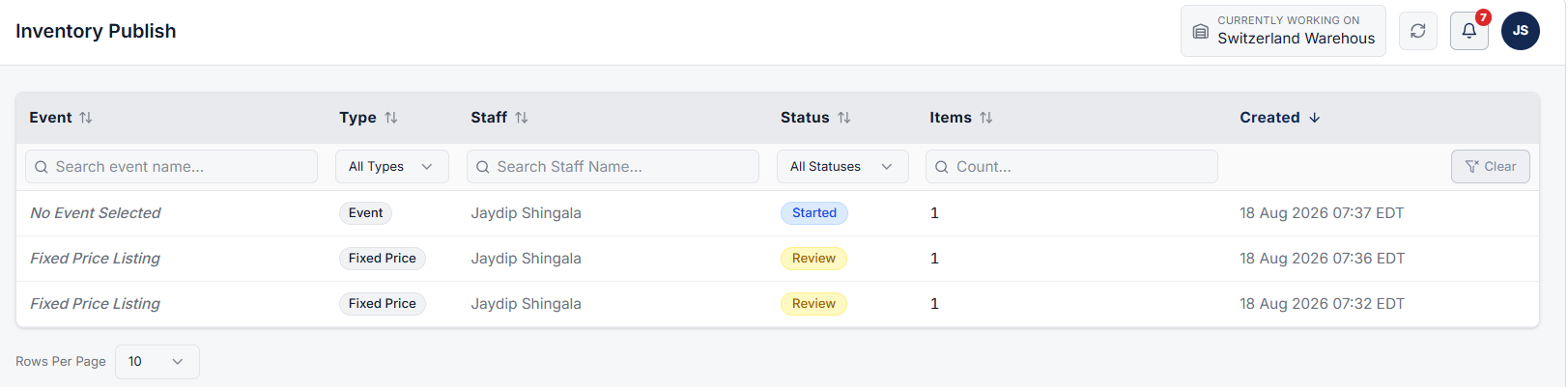
All published inventory can be found on the Inventory Publish page under Connected Stores.
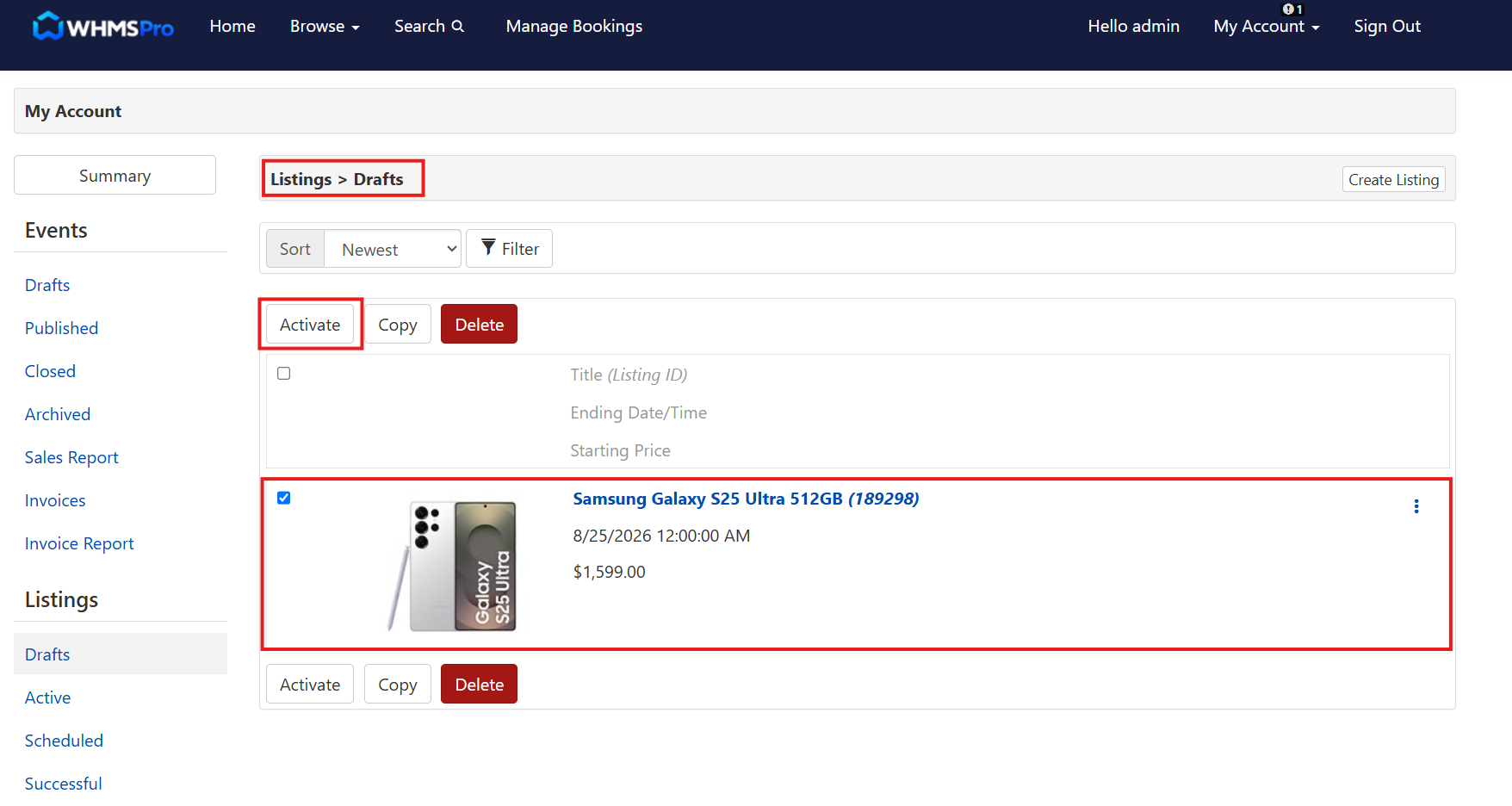
For Fixed Price Listings, once published by the reviewer, they will be visible in AuctionWorx under My Account > Listings > Draft. Simply select the listings and click on Activate button to make them live.
Publish as Auction Lot
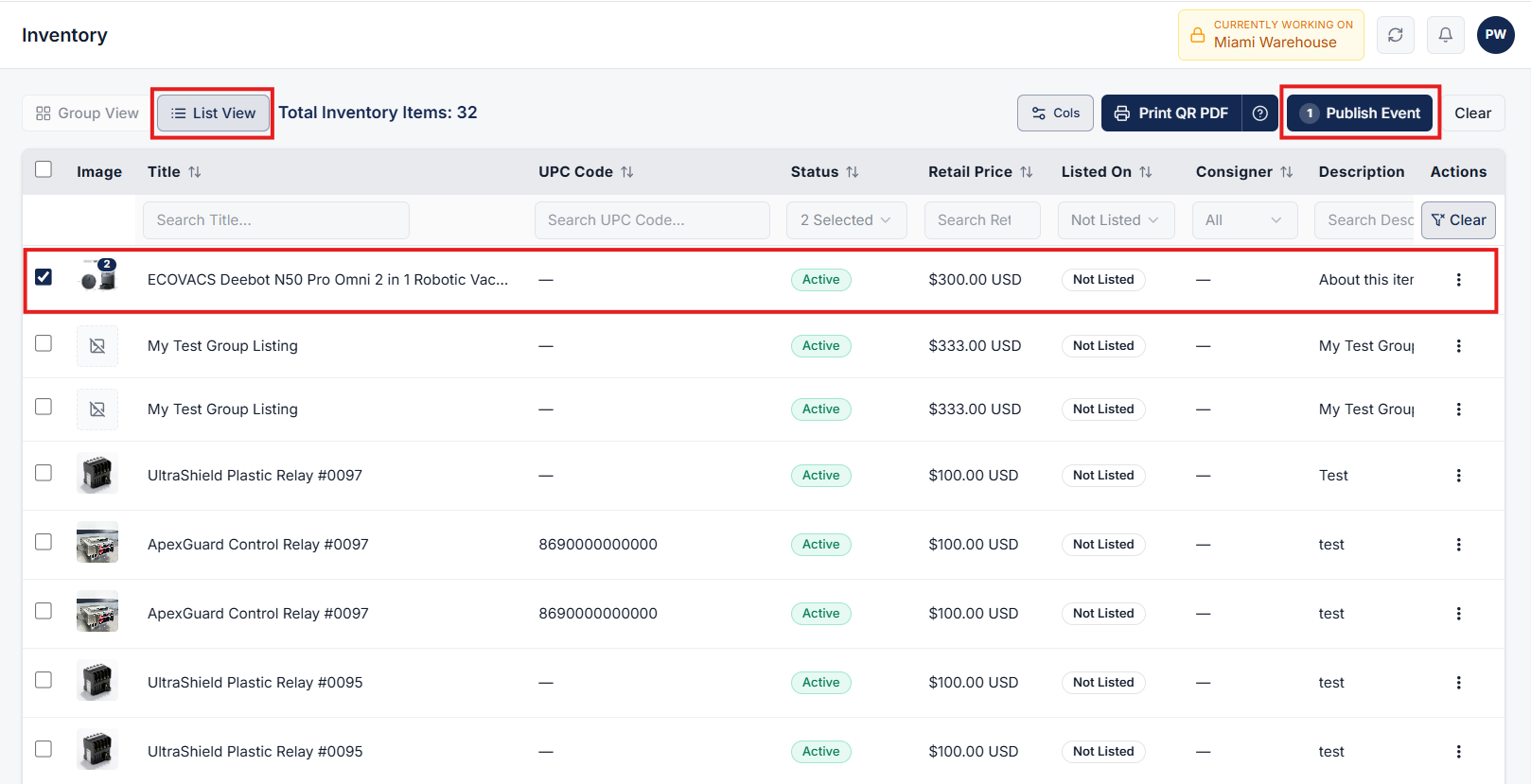
- Navigate to the Inventory page under the Warehouse section
- Switch to the List View and select the item you want to auction
- Click the Publish Event button
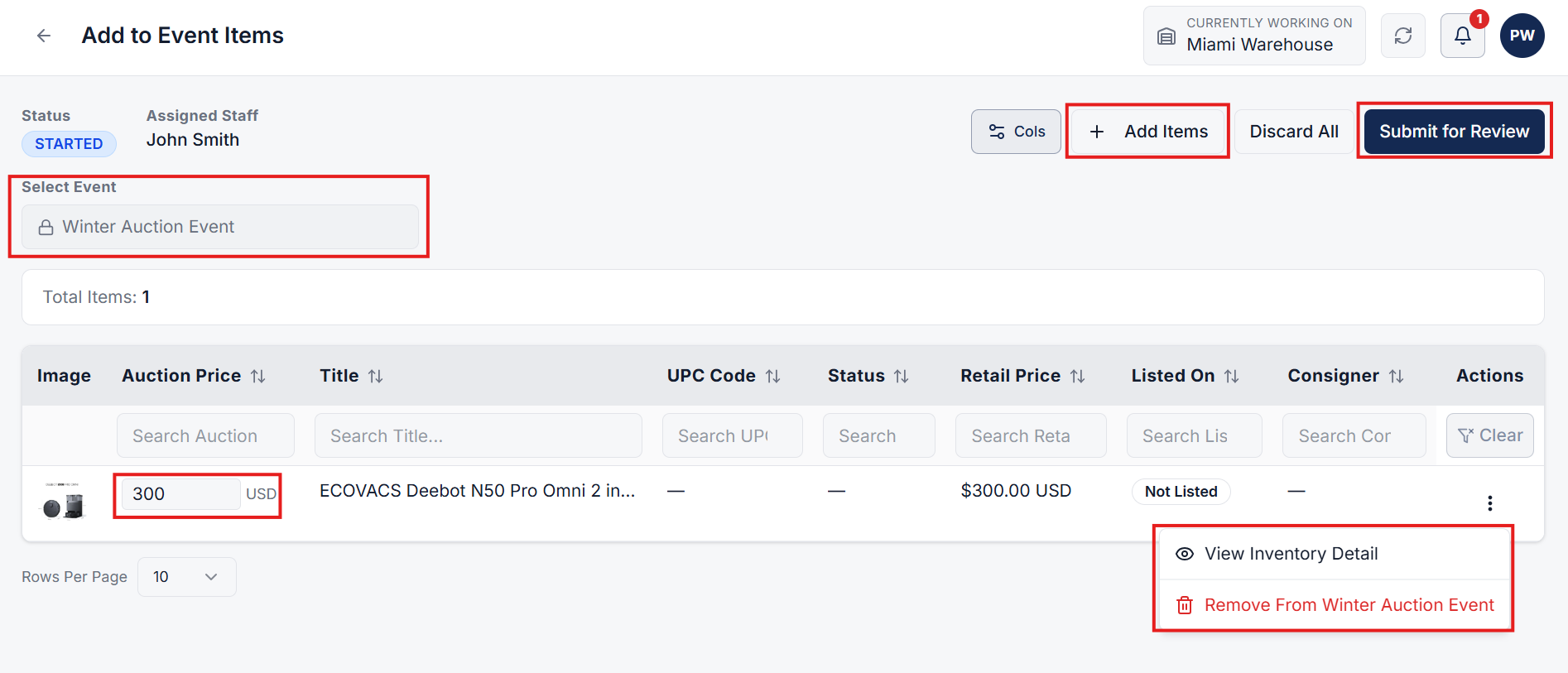
- On the Add to Event page, you can add more items using the same steps as above
- Select the Event in which you want to publish the item. Only draft events can be selected. Once an event is selected, it cannot be changed; you will have to discard the submission and create a new one to select a different event.
- Enter the Auction Price.
- To add more items, click the Add Items button. Use the 3-dot menu in the Actions column to view inventory details or remove an item from the list.
- Once everything is set, click Submit for Review. The reviewer will review the submission and publish the listing.
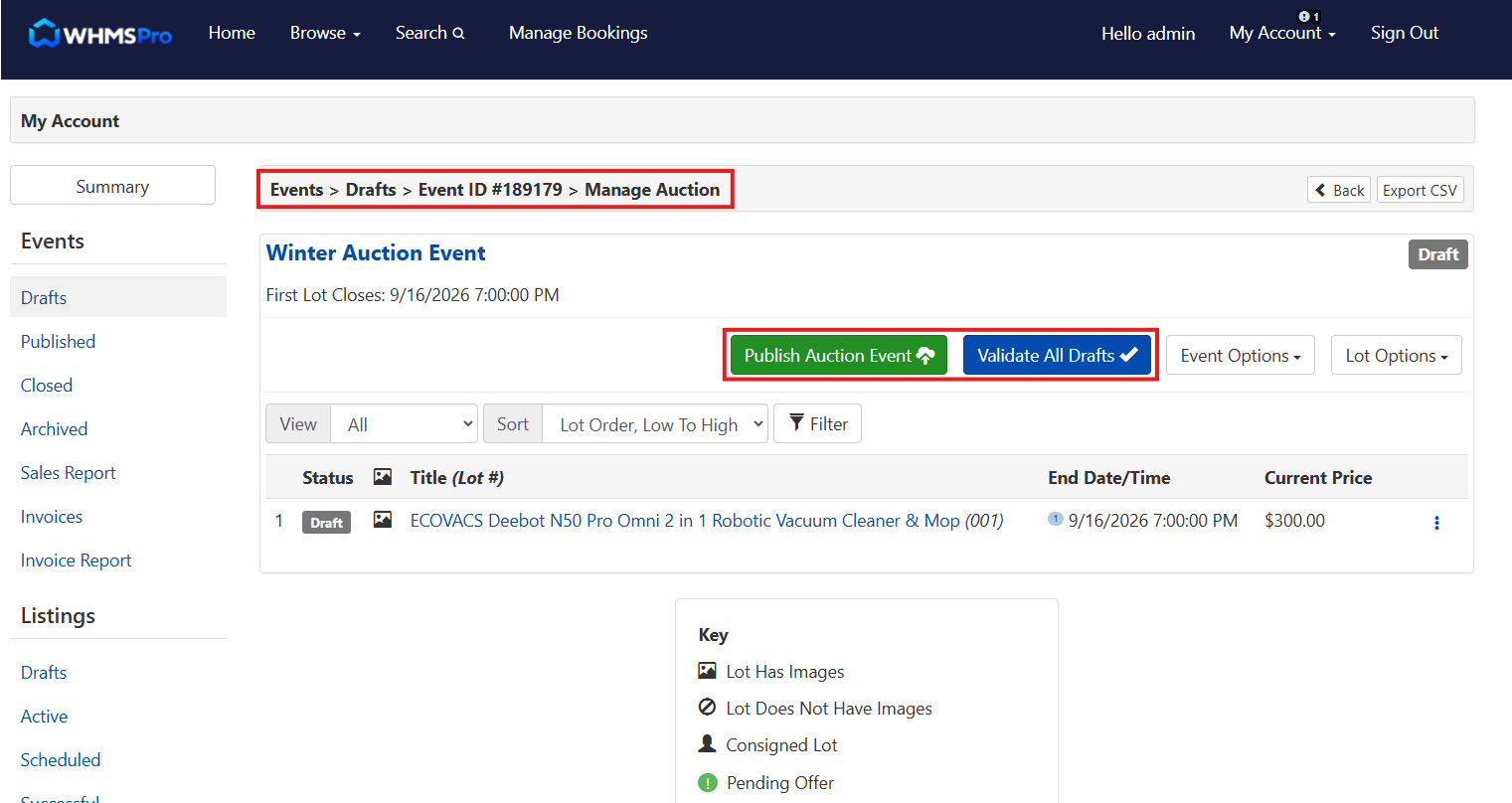
Once the inventory is published by the reviewer, those published inventory items will be visible in your draft event in AuctionWorx. Simply validate all your drafts and click on Publish Event in AuctionWorx to publish your event live.
When invoices are created in AuctionWorx after an auction, those invoices are automatically displayed on the Invoice page in WHMSPro and the corresponding buyer records appear on the Buyers page.
Getting Help
For any assistance, contact our support team at info@whmspro.com. We would be happy to help you get the most out of your WHMSPro integration with AuctionWorx.